This feature has been deprecated in Appway 7 and is going to be removed in future Appway versions. This means that you can currently still use this feature, but should plan to phase it out. For more information on deprecation and on suggested actions, see
Feature Removal and Deprecation Planned with Appway 7.0.
The PortalWorklist extension contains a Screen component for managing workitems through worklists. Worklists are, as the name suggests, lists of workitems organized according to certain properties. Worklists feature configurable columns with filtering, sorting and caching functionalities, and an integrated participant tracker.
The extension also contains a CSS file, a Date Format Pattern, three Data Classes and four Functions. Please note that certain features regarding CSS properties and rows are only available as of version 4.3 of this extension. This is noted in the documentation.
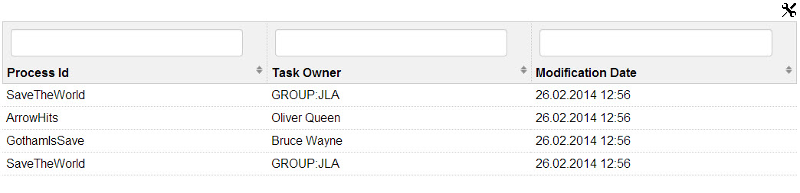
Figure 1 : Example worklist
Why are worklists useful? Users can directly act on the tasks assigned to them from their worklist, which has been configured according to their role and access rights. Taking an HR management application as an example, employees would only see the status of their own holiday requests, while the employees' manager would see all holiday requests awaiting approval.
The Worklist and the Worklist Column Screen Components are found in the Screen editor component library.
Drag the Worklist component onto the composition area to generate a new worklist, then configure the worklist properties according to your needs (see Chapter 2 "Worklist Properties").
If extra columns are required, use the Worklist Column component to add as many columns as are necessary (see Chapter 3 "Worklist Column Properties").
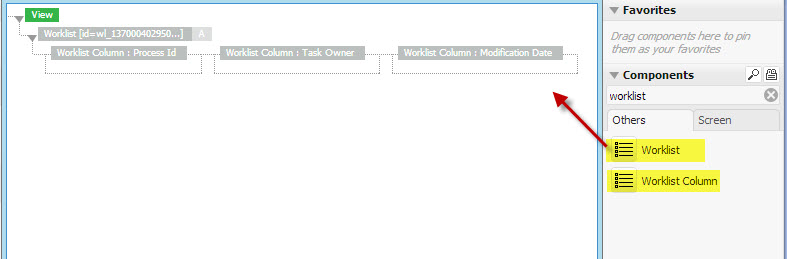
Figure 2 : Drag in a new worklist
This chapter provides details on the various worklist properties that can be configured, from setting up worklist content to user display preferences.
| Property | Description |
| Worklist Id | Unique ID for the Worklist Component. When copying existing worklists, remember to replace the copy's Worklist ID with a new, unique ID. |
| Worklist Name | Set a name for the worklist. This is the name displayed in the worklist's header. |
| Source | Select the source of the worklist.
You can choose between a default Appway workitem list or an offline worklist.
Only choose 'offline worklist' if the Offline WorklistClient extension is already installed. The Offline WorklistClient extension is not necessary for the Worklist components described in this article to function. |
| Data Source Name | This field only appears if "offline worklist" was selected as the source. Select the data source from the Offline WorklistClient extension. |
| Iteration Variable | The iteration variable (e.g. "it_variable") is called from the 'Custom' column or from the 'Actions' column (if such a column type is used) to access the workitem information. |
| Preferences | Check this box to allow users to set their own worklist preferences. When enabled, a tool icon appears at the top right of users' worklists, alerting them to this possibility. |
| Max Rows | The maximum number of rows that will be displayed at once. If the number of workitems exceeds this value, pageing will be enabled. |
| Column Filtering | Check this box to enable users to filter worklist columns. Whether a filter textbox appears in a specific column or not depends on the column's "Filtering allowed" setting (see Section 3.2 "Advanced Tab"). |
| Filter Position (as of v4.3) | This field only appears if "Column Filtering" is checked.
Choose whether the filter fields should be rendered above the column header, or below. |
| Alternate CSS Resource | Choose your own CSS resource for a worklist. See Chapter 5 "Design / CSS" for more information. |
| Description | This field contains the text that will appear when the component is collapsed. |
A Workitem Set is the selection of workitems displayed in a worklist. Configure this content by selecting a default list of workitems or defining a custom one. Default lists allow you to display workitems either currently or previously assigned to users, their groupy or roles.
- Default Lists – Pre-defined worklist content types
- Currently Assigned – Tasks users are assigned to
- Participant Assigned – Tasks the user was assigned to, but which are now being dealt with by another user, group or role
- Custom List – Use scripts to curate worklist content if the default lists are not suitable
The Assignment dropdown menu lets you select the type of workitems that will be displayed in a user's worklist. You can choose either 'Currently Assigned' or 'Participant Assigned'.
Currently Assigned
If selected, this option will display tasks the user is assigned to which require their attention. The combinations available are found in the "To" dropdown menu:
| To | Result |
| My tasks | Workitems assigned to the individual user |
| My groups | Workitems assigned to a group the user is a member of |
| Members of my groups | Workitems assigned to all members of the groups the user is a member of |
| My groups and members of my groups | Combination of "My groups" and "Members of my groups" |
| My roles* | Workitems assigned to a role the user is a member of |
| Members of my roles* | Workitems assigned to all members of the roles the user is a member of |
| My roles and members of my roles* | Combination of "My roles" and "Members of my roles" |
| My groups OR my roles* (as of v4.3) | Combination of "My groups" and "My roles" |
* The default Appway roles "User" and "Administrator" will be ignored
The Process Filter field lets you select or evaluate a process ID that works as a filter for the workitem set.
Participant Assigned
This option requires additional set-up before use. See Chapter 4 "Participants" for more information.
If selected, this option will display tasks the user was assigned to, but which are now being dealt with by another user, group or role. The combinations available are found in the "To" dropdown menu:
| Property | Description |
| My participant tasks | Workitems which were assigned to the user and are not currently assigned to the user |
| My groups were participant | Workitems which were assigned to a group the user is a member of, and which are not currently assigned as workitems to one of these groups |
| Members of my groups were participant | Workitems which were assigned to all members of a group the user is a member of, and which are not currently assigned as workitems to one of these members |
| My groups and members were participant | Combination of "My groups were participant" and "Members of my groups were participant" |
| My roles were participant* | Workitems which were assigned to a role the user is a member of and are not currently assigned to one of these roles |
| Members of my roles were participant* | Workitems which were assigned to all members of a role the user is a member of and are not currently assigned to one of these members |
| My roles and members were participant* | Combination of "My roles were participant" and "Members of my roles were participant" |
| MY groups OR my roles were participant* (as of v4.3) | Combination of "My groups were participant" and "My roles were participant" |
* The default Appway roles "User" and "Administrator" will be ignored
Warning: This option may slow down rendering performance!
Appway lets you curate your own custom lists using scripts if the defaults are not suitable. If you choose this option, please be aware that performance may be affected.
- Workitem Script: Use an Appway script expression that returns a valid set of workitem objects. For this field to function correctly, you need to have selected "Workitem list" as the Source in the Properties tab.
- Custom Query: Use your own SQL query string for the Offline Worklist.
See Section 10.2: "Custom Queries" . For this field to function correctly, you need to have the Offline WorklistClient extension installed, and the Source in the Properties tab set to "Offline Worklist".
These advanced features allow you to reuse columns and trigger Ajax Update Areas.
When reusing another worklist please note that all columns are brought across. The copied worklist cannot be edited to remove any of the columns.
| Property | Description |
| Reuse other Worklist's columns | Check to enable this feature, which allows you to directly copy another worklist's columns. Remember to change the Worklist ID in the copy's properties panel. |
| Reuse columns of Worklist with Id | Enter the ID of the worklist containing the columns to be reused |
| Affected Ajax Update Areas | Comma-separated list of Ajax Update Areas triggered together with the Worklist Ajax Update |
| CSS Row Class (as of v4.3) | The result of this expression is set as the class attribute on each row. |
Callbacks can be used in conjunction with the Portal Worklist. A callback is a function executed after another function has been executed.
| Property | Description |
| Sorting Callback | JavaScript code triggered when sorting is applied to the worklist |
| Filter Callback | JavaScript code triggered when a filter is applied to the worklist |
| Pageing Callback | JavaScript code triggered when pageing is applied to the worklist |
onrowclick – This behavior is assigned automatically to each Worklist, so that workitems open when clicked. This behavior can be altered.
If an 'Actions' column type has been added to the worklist, that column will display between one and three icons to the user. The remaining Events in this Actions tab correspond to these default icons, 'delete', 'assign' and 'view':
- ondeleteclick
- onassignclick
- onviewclick
For more information on the 'Actions' column type and icons, see Section 3.1 "Properties Tab".
While Chapter 2 focused on worklists and how to configure worklist properties, this chapter focuses on how to configure the columns themselves.
Each column can be assigned a column type that determines the kind of content that appears in that column. You can choose from various presets (Priority, Due Date, or Phase Name for example), or create your own custom column type.
If you have the BAM extension installed, two extra column types will become available: Process SLA and Activity SLA.
The following three properties appear for every column type:
- Column Id. A unique ID for the column. When copying columns, remember to give each copy a new unique ID.
- Column Header. The text displayed to users at the top of the worklist column
- Description. The field contains the text that will appear when the component is collapsed.
For a column type containing a date — process creation date, process modification date, token creation date, token modification date, due date — the following property also appears:
- Date Format. This sets how the date will be displayed to users. The "portal" date format is automatically included with the PortalWorklist extension. If "portal" is chosen, the column will use the date format specified in the Portal Date Format pattern.
For more information see Chapter 7 "Date Format patterns".
The other date formats available (if any) will depend on your installation.
For an Actions column type, the following additional properties appear:
- Assign: Display Condition – Expression condition to evaluate if an "assign" icon will be shown in a row
- View: Display Condition – Expression condition to evaluate if a "view" icon will be shown in a row
- Delete: Display Condition – Expression condition to evaluate if a "delete" icon will be shown in a row
The Action Column comes with three different default icons (View, Assign, and Delete). The icons can be changed / modified through the class names in the CSS file. Note that an Action Column can display a maximum of three icons. If more icons are required, create a custom column of type "Icon".
The following conditions are required to display an icon in a specific row:
- Write an Appway Script condition which returns true for an icon type
- Add an action in the worklist's Action tab for that icon type
If the condition is true and an action is set, then the icon will be displayed.
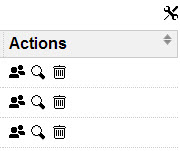
Figure 3 : Actions Column with default icons
No default actions are predefined for a new Actions column. Access your iterating variable in the actions to get information about the affected workitem.
For the Custom column type, the following additional properties appear:
Column Data Type
Choose from the following data types:
- Text
- Number
- Date – This sets how the date will be displayed to users. The "portal" date format is automatically included with the PortalWorklist extension. If "portal" is chosen, the column will use the date format specified in the Portal Date Format pattern. For more information see Chapter 7 "Date Format patterns". The other date formats available (if any) will depend on your installation.
- Boolean
- Icon – If selected, column filtering will be disabled
Custom Source
- Script. An extra script field appears in the panel; enter script which returns the value to be displayed
- Process Instance Attribute. Select this option if you have an attribute defined on the workflow instance that you want to access. An extra "Attribute Name" field will appear. Set the exact name of the workitem attribute to be accessed. An extra "Filter Value" field will also appear. You can use it to pre-filter values from the workitem list.
- Process Token Attribute. Select this option if you have an attribute defined on the workflow token that you want to access. An extra "Attribute Name" field will appear. Set the exact name of the workitem attribute to be accessed. An extra "Filter Value" field will also appear. You can use it to pre-filter values from the workitem list.
- Children of column. Select this option to display column child elements on the screen. Children of column sources only offer limited support when sorting and filtering.
Custom sort value
Set the value to be used as the sorting criterion. To enable sorting for a date or time in a custom column, use the timestamp value in this field.
Custom display value
If a value is entered in this field, it will be the value displayed to users instead of the actual column value. The actual column value will be shown to users on mouseover.
Description
This field contains the text that will appear when the component is collapsed.
This tab gives you further possibilities over how the portal worklist will be displayed to the user, covering formatting options and caching.
| Property | Description |
| Display Option | If checked, users can choose whether or not to display this column in their worklist |
| Sorting allowed | If checked, the column appears in users' user preference options. Sorting arrows will appear next to the column's header. |
| Filtering allowed | If checked, a search field will appear at the top of the column in the portal but ONLY if "Filtering allowed" was selected at the worklist level |
| Values can be cached | If checked, custom child content will be cached instead of reevaluated |
| Cache per user | If checked, every user is given a separate cache for this column. Select this option if different users should see different content behavior for this column, for example due to different entitlements. |
| Cache validity [seconds] | Specify the length of time before a cache entry has to be refreshed. 0 means never and should be used whenever column content is static.
Warning: Changing this value requires restarting the PortalWorkList extension in order for modifications to take effect! |
| Alignment | Specify how the content should be aligned within the table cell. |
| Hide Column (as of v4.3) | Check to hide the column from the user in the Workspace. Use this option when you want to use a column in order to apply a custom filter to a worklist, but showing the user the column is not necessary or wanted. |
If you want to use the Participant Assigned worklist feature mentioned in Section 2.2.1, some additional configuration is required. The "Participant Assigned" option displays tasks the user was assigned to, but which are now being dealt with by another user, group or role.
You need to register users as participants within a process as this step is not done automatically. You must add a list of participants to a specific Workflowinstance or Workflowtoken attribute in order to be able to display workitems that the user participated in.
There are two ways to register these attributes:
- Use the built-in process listener to update attributes automatically (see Section 4.1.1 "Enable Process Listener" below)
- Use a manual Appway Script to update this attribute each time a new user is assigned to a workitem
To use the automatic participants function, configure the following extension settings:
- Set the "processlistener.enabled" field to true
- Optional: If required, change the "participants.attribute" field from 'Participants' to the appropriate global attribute name for the participants
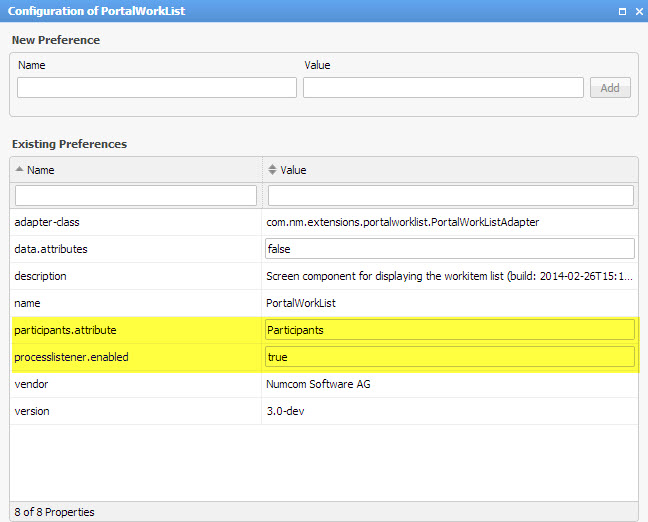
If you made a change to the "participants.attribute" field, make sure the "Participants Attribute Name" property found in the Workitem Set Tab is identical.
After restarting the extension, you can now set the 'To' property for the Participant Assigned worklist feature according to the Participant Assigned table in Section 2.2.1 "Default Lists".
(note: this feature requires version 4.5.4 or higher of the portal worklist extension)
When using the automatic participants function as described in section 4.1.1 , every process token is tracked and its owner added to the process instance's 'Participants' attribute.
In certain cases, however, you may wish to ignore adding the owner of a process token. For example during expert consultancy, the owner of the consultancy token may be giving advice only, and should therefore not be added to the participants list.
To do so, set a process token attribute on the consultancy token. The process token attribute must be called 'doNotTrackParticipants'. Its value is ignored. An example is given below:
Performing Load Testing on a Solution
To re-enable tracking of a process token, remove the attribute. Afterwards, the next time the token is moved, the default behavior applies (its owner will be added to the process instance's 'Participants' attribute).
A CSS resource file, "portal-worklist.css", is created on installation of the PortalWorkList extension. This CSS file contains all the component's default styles.
You can easily change Styles and Icons, and refer to them from the Workitem property "Alternate CSS Resource".
As of v4.3 of the extension, you can use the CSS Row Class property found on the Advanced tab of the Worklist component to style rows according to criteria of your choosing. You can use an Appway script expression to set an additional CSS class for each row when rendering – to highlight workitems due within the next 12 hours, for example, or highlight those belonging to a certain task owner.
The image below demonstrates the use of this CSS styling to highlight tasks owned by "Heros".

The PortalWorklist Extension comes with a 'portal' Date Format Pattern, which installs automatically. This 'portal' Date Format Pattern can be edited and adapted if required. All Date Format Patterns available in your installation of Appway will appear in the 'Date' dropdown menus alongside the 'portal' Date Format Pattern.
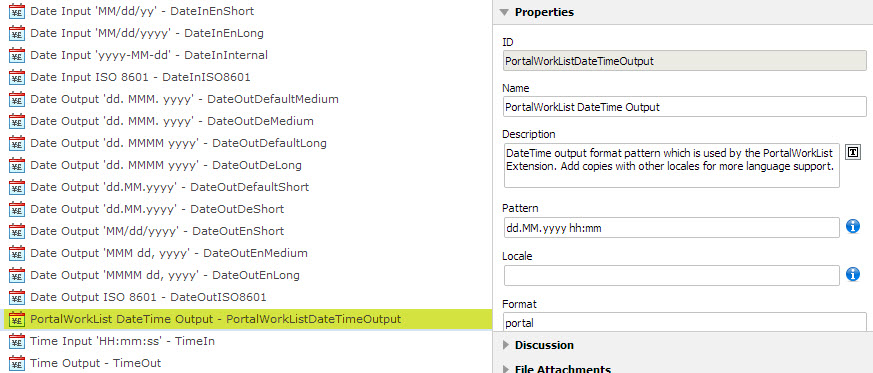
Figure 6 : PortalWorklist Date Format Pattern
Three new Data Classes are defined upon installation of the PortalWorklist extension. The extension requires these classes for its data export function.
- PortalWorkList_Bucket – Worklist structure with workitems and data rows
- PortalWorkList_HeaderColumn – Column information (Display Name, Default Sort Value and Column Id)
- PortalWorkList_RowContent – Content data split into rows
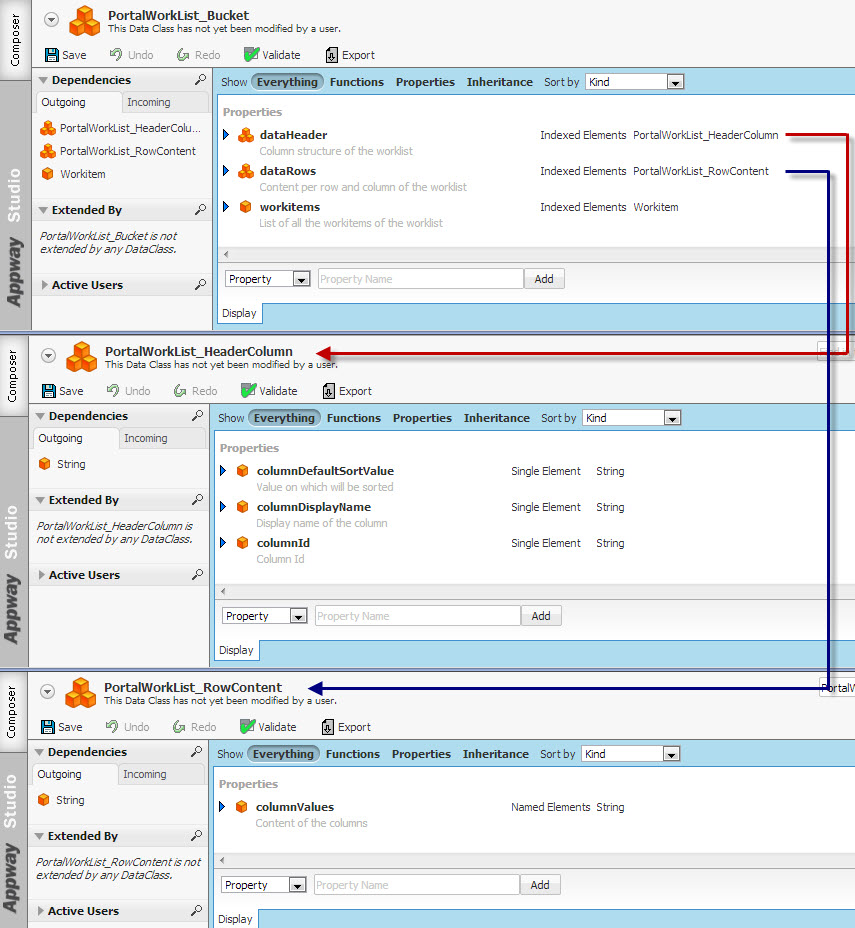
Figure 7 : The three Data Classes created by the PortalWorkList Extension
The Count and GetData functions will slow down the screen in which they are called. Be careful when running these scripts in the "Render Phase."
For the following functions, 'bucket' is synonymous with 'worklist'. 'Bucket' is a legacy term.
Four PortalWorkList-specific functions are available:
- CountPortalWorkListItems()
- GetWorkitemsFromBucket()
- GetDataFromBucket()
- SetColumnFilterValue()
Each function is explained below. Please note that using the GetDataFromBucket or the GetWorkitemsFromBucket functions will generate almost as much load as the worklist itself. Carefully evaluate whether you really need to use these functions. Be careful when running these scripts in the "Render Phase".
This function returns the number of workitems for a worklist. It takes two parameters: the ID of the worklist and the ID of the screen where the worklist is located.
Local Integer $count := CountPortalWorkListItems('wl_12345678', 'Portal')
This function returns a list of all the workitems in a worklist. It takes two parameters: the ID of the worklist and the ID of the screen where the worklist is located.
Local Indexed Workitem $myWorkitems := GetWorkitemsFromBucket('wl_12345678', 'Portal')
This function returns a PortalWorkList_Bucket object containing all the workitems from a worklist, and their corresponding data. It takes two parameters: the ID of the worklist and the ID of the screen where the worklist is located.
Local PortalWorkList_Bucket $myWorklist := GetDataFromBucket('wl_12345678', 'Portal')
This is a helper function to generate JavaScript code to set a client-side filter. It takes four parameters:
- html id (worklist id): The ID of the worklist where the filter should be applied. In the script editor this is 'html id', however in the Properties panel it is always referred to as 'worklist id'.
- column id: The ID of the column where filter should be applied
- filter value: This value will be added to the filter text box
- execute filter: 'True' generates an execute event which will trigger the filter. False merely sets the filter to the filter value.
Local String $jsFilterCode := SetColumnFilterValue('wl_12345678', 'col_1234', 'subProcess', true)
Certain testing applications require each element to have a unique identifier in order to run tests. The elements of the PortalWorkList extension are not given a unique identifier by default.
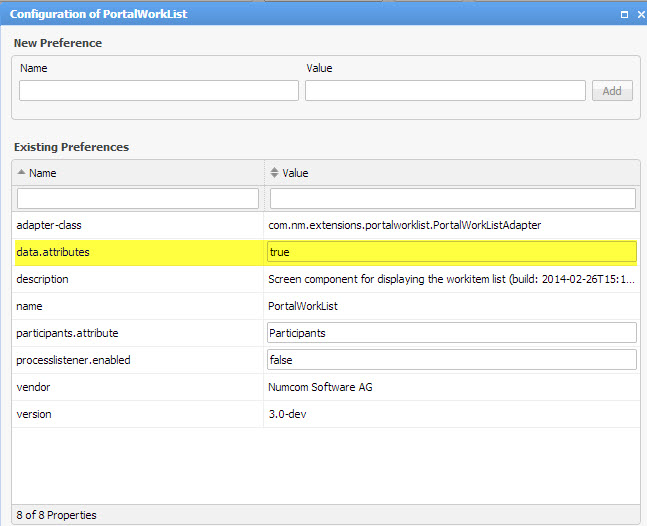
You can assign unique identifiers to each worklist row and column using the data.attributes option. In the PortalWorkList extension configuration window, set the data.attributes option to 'true'.
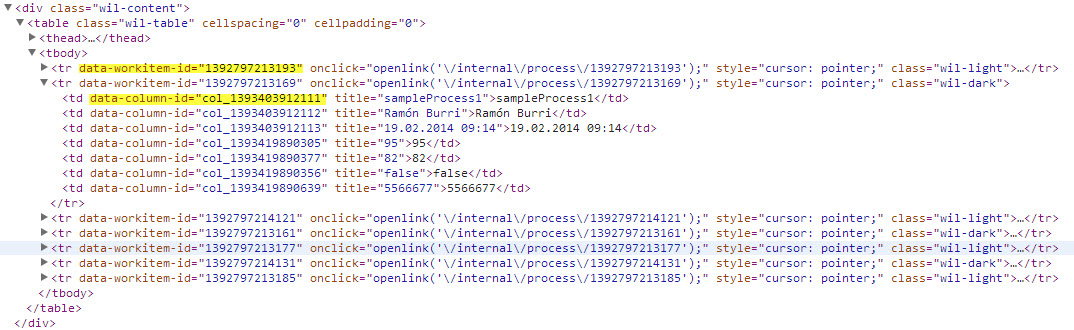
As the image below shows, the rows of a worklist now have 'data-workitem-ids', and each column has a 'data-column-id' in the HTML source code.
The OfflineWorklistClient extension is not necessary for the PortalWorkList to function correctly. If the OfflineWorklistClient extension is already installed, this chapter briefly explains how to configure it to work with the PortalWorkList extension.
Using the OfflineWorklistClient extension in conjunction with the PortalWorkList extension has been supported since version 2.5.3 of the PortalWorkList extension.
In order for the two extensions to work together properly, you need to adjust a few OfflineWorklist settings as shown in the image below. This adjustment will add additional columns to the database tables and provide extended support.
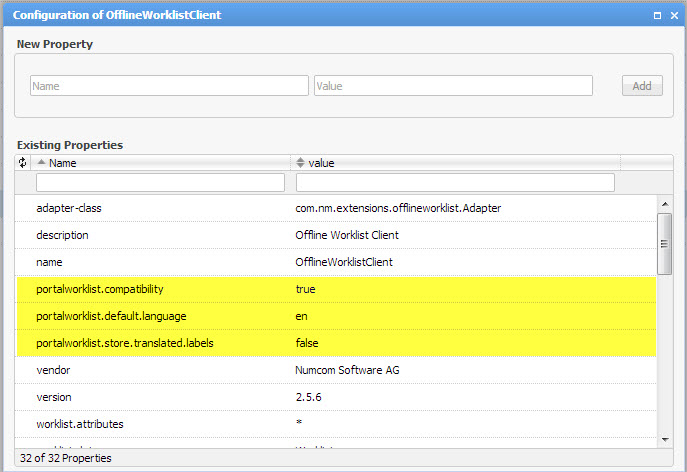
Figure 10 : OfflineWorklist configurations for the PortalWorklist
When using a custom query, take the need of the columns in the select statement into account. Take the original query for customizations:
SELECT wfi.systemId, wfi.workflowInstanceId, wfi.workflowId AS rootWorkflowId,
wft.workflowTokenId, wft.userId, wft.status, wft.elementId, wft.creationTime,
wft.modificationTime, wft.workflowId, wft.elementName, wft.elementTaskListName,
wft.phaseName, wft.phaseTaskListName, wft.swimlaneName, wft.swimlaneTaskListName

FROM workflowInstances wfi, workflowtokens wft

WHERE wfi.workflowInstanceId = wft.workflowInstanceId
AND wfi.status = 'Active'
AND wft.userId IN ('NM')
If the Business Activity Monitoring (BAM) extension is installed on your Appway platform, you gain access to two additional Worklist columns, "Process SLA" and "Activity SLA".
For more information about these additional columns, please refer to the BAM documentation .
This chapter contains general guidance and advice on using the PortalWorkList extension. Section 12.4 "Charting Extension Example" also includes an export file for you to download.
- Worklist components are containers: They can be surrounded with conditions and filled with other screen components.
- When copying a worklist or a worklist column, you are also duplicating the component's ID. Make sure you use a unique ID for each component to reduce errors.
- Try to use the default workitem sets. Using custom queries or Appway scripts could slow rendering down tremendously.
- Use default columns when possible. If custom columns are required, try to go for the process instance attribute variation and do not use many scripts. The data gathering is optimized for token or instance attributes.
- Using the GetDataFromBucket or the GetWorkitemsFromBucket functions will generate almost as much load as the worklist itself. Carefully evaluate whether you really need to use these functions.
The following two validation warnings may occur when composing screens with the Worklist component. These warnings can be safely ignored.

Figure 11 : Validation warnings for the Worklist component
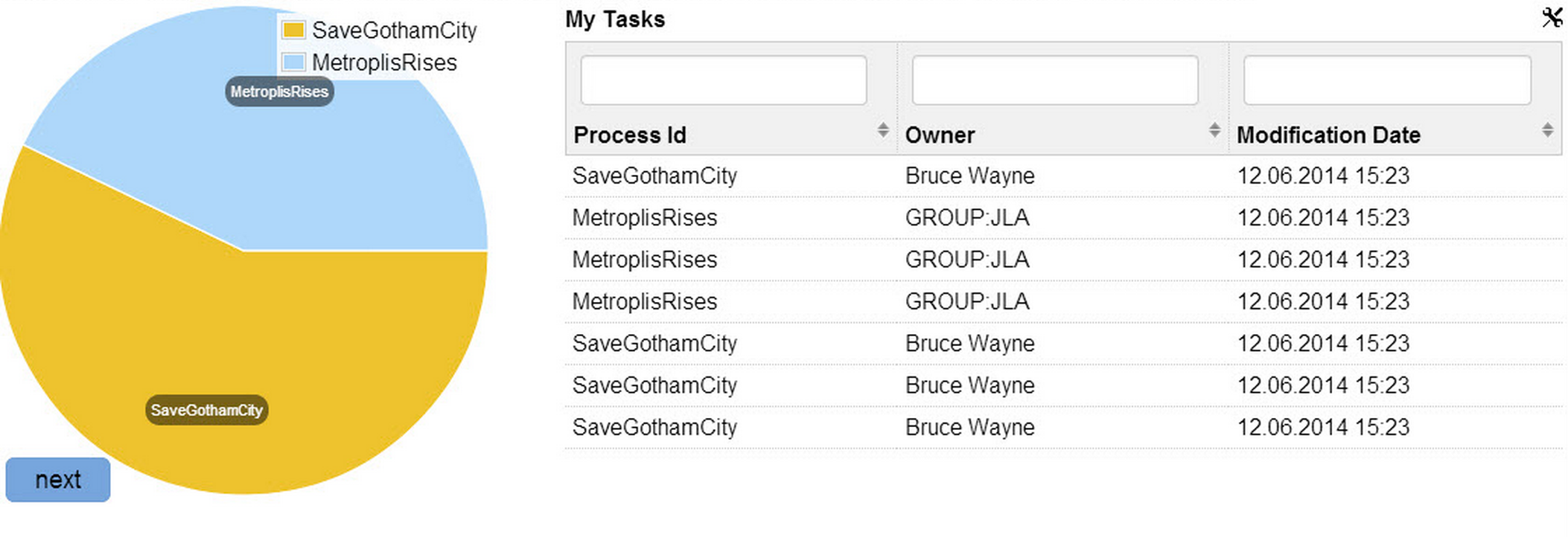
The Screen below shows an example of the interaction between a pie chart from the Charting extension, and the Worklist. In this case, the requirement was to represent a drill-down of the workitems in a pie chart.
The piechart below displays three levels of detail: the root process IDs, the task owners, and the modification date.
Minimum Requirements:
- Portal Worklist extension version 4.2.4
- Charting extension version 2.1.3
example_ChartingExtension_with_PortalWorkList.awexport
The "Workitem Set" tab is configured differently in version 4.0 of the PortalWorkList extension than in versions 2.2.x and lower. This means that when you upgrade to version 4.0, you will lose the previous configuration of this tab.
For guidance on how to migrate to version 4.0 of the PortalWorkList, see the Portal Worklist: Migration from 2.2.x to 4.x recipe.