Note that the Appway Platform has been renamed
FNZ Studio (also referred to, generically, as Platform in this article). Appway Studio (design-time environment) and Appway Workspace (runtime environment) have been renamed
FNZ Studio Composition and
FNZ Studio Runtime, respectively. Refer to our Renaming
article for full information.
As introduced in the Relationship Definition ABC document, Relationship Definition boosts front-office efficiency thanks to its UX and increases client satisfaction by guiding the user to understanding business cases and collaborations.
On the developer experience side, Relationship Definition also provides capabilities such as:
- A data-driven and configuration-oriented approach.
- Minimal effort for visuals and a reduced implementation effort thanks to its auto-generated UI.
- A declarative approach, which reduces configuration time and effort.
- Modularity and reusability by sharing basic concepts with other App Tasks (Data Rules, validation, actions..) thus improving overall efficiency.
The Relationship Definition configuration is based on three main concepts:
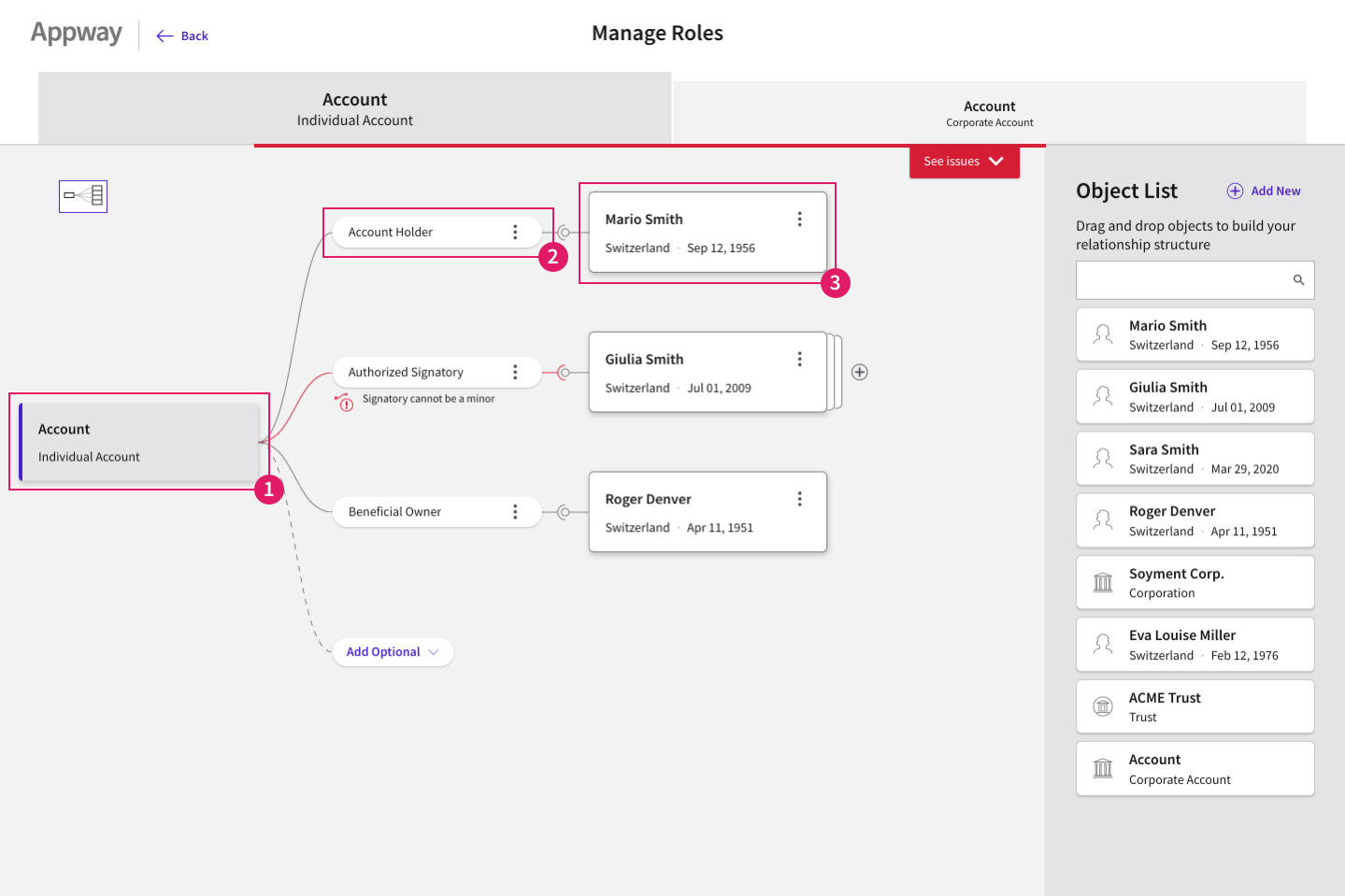
- Root Objects — Collection of Data Class instances that represent the set of Objects used as "entry points" for navigation in the Relationship structure. These are shown as tabs in Studio Runtime (See configuration).
- Relationships — Relationships are represented in the Platform Business Object model as Data Class Instances. For example, the fact that the client
Mark Smith is the account holder for the bank account BA12345678 can be represented by an instance of a Data Class called AccountHolder. (See configuration). - Objects — Objects are the Data Class instances that can be used as sources and targets of Relationships (e.g. Client Data Class instance, Party Data Class instances etc).
This document contains configuration information and technical details on the Relationship Definition ABC and the Relationship Definition App Tasks, and is intended for users in charge of Relationship Definition configuration. See also:
- AppTask Extension (mandatory extension in the FNZ Studio Platform)
- AppTaskAPI Extension (mandatory extension in the FNZ Studio Platform)
- RelationshipDefinition Extension
Always check the Relationship Definition
Products card to know the specific extension versions you need for your Relationship Definition ABC.
Always check the Relationship Definition
Products card to know the specific Platform version you need for your Relationship Definition ABC.
Moreover, make sure that your Platform installation includes:
- All Platform mandatory extensions in addition to the AppTask and AppTaskAPI mentioned above (see the System Upgrade article for your Platform version) .
- All Platform mandatory Packages (dowloadable from the Products page).
- Upload the required extensions:
- AppTask
- AppTaskAPI
- RelationshipDefinition
When upgrading Relationship Definition from v2.1 to v3, consider the information below.
Label Refactoring
Some Labels have been refactored in Relationship Definition v3.0.1, therefore some actions may be necessary if you are upgrading to this version. See also the Labels and Translations section in the App Tasks - Generic Configuration documentation for further details.
- Added Labels — The following Labels have been added to the specified Platform Packages with default English texts. You can add and edit translations for such Labels (in Solution Design> Translations tab):
AppTask:ErrorMessages.Savepoints.FetchAppTask:ErrorMessages.Catalog.FetchAppTask:ErrorMessages.Collaboration.UpdateAppTask:ErrorMessages.Data.FetchAppTask:ErrorMessages.DefaultAppTask:ErrorMessages.Update.Collection.AddAppTask:ErrorMessages.Update.Collection.RemoveAppTask:ErrorMessages.Update.Object.CreateAppTask:ErrorMessages.Process.Action.ExecuteAppTask:ErrorMessages.Task.InitAppTask:ErrorMessages.Theme.FetchAppTask:ErrorMessages.Document.AddAppTask:ErrorMessages.EndTaskAppTask:ErrorMessages.StartSubprocessAppTask:ErrorMessages.Definition.UpdateRelationshipDefinition:Tree.Node.ObjectDeleteRelationshipDefinition:Tree.Node.ObjectDeletedRelationshipDefinition:Metadata.Review.Title
When upgrading Relationship Definition from v2.0 to v2.1, consider the information below.
Label Refactoring
The following Labels have been added to Relationship Definition v2.1. You should add translations for such Labels in Solution Design > Translations tab:
AppTask:EmptyState.NoInformationToDisplayAppTask:ViewMoreRelationshipDefinition:Toolbar.TreeViewRelationshipDefinition:Toolbar.ListView
Label Fixes
Relationship Definition v2.1 fixes an issue on the "Relationship exceeds cardinality" (RelationshipDefinition:Relationship.Issue.TooManyRelationships) Label where variable assignments were not used correctly in Label translation (see Release Notes).
Therefore, an upgrade to Relationship Definition v2.1 from a lower version is likely to affect previously existing translations of such Label. When upgrading, make sure that:
- Variable assignments for this Label are correctly filled in
- You are using the descriptive name, instead of the technical name, for
relationshipType (assuming that each Data Class referring to a relationship type has a corresponding descriptive Label with the same ID, e.g., Data Class MyPkg:RelationshipA with Label MyPkg:RelationshipA).

When upgrading from v1.1 to v1.2, consider the information below.
Label Refactoring
The following Labels have been added to Relationship Definition v1.2. You should add translations for such Labels in Solution Design> Translations tab:
RelationshipDefinition:Minimap.Zoom.FitRelationshipDefinition:Minimap.Zoom.Reset
After following the installation steps above, two App Tasks will be available in your Platform installation in the Components library of the Process Editor:
- Relationship Definition App Task — Allows creating a structure of Objects and Relationships.
- Relationship Review App Task — Allows viewing the structure in read-only mode, as well as inspecting and exploring data. Changes in Objects and Relationships are not allowed.
The configuration for the two App Tasks are very similar and differs only in the following tabs: UI, Relationships, Actions. Such differences are marked by an asterisk in the Tab column and explained in the Description column of the table below.

Starting from Appway 11.1.3, it is possible to copy configurations from/to Relationship Definition and Relationship Review App Tasks to reduce development effort. To do so, right-click on the Relationship Definition or Relationship Review App Task you are configuring in the Process Editor, and select Copy Configurations From. In the popup, select the App Task from which you want to copy configurations.
| Tab | Description | Documentation Link |
|---|
| Properties | Configure general properties of the App Task:- Task Title field: select the Label Business Object containing the title for the whole Relationship Definition page. In case the property is not set, it shows 'Appway'.
- Task type dropdown: select the Task pattern.
| App Task Types documentation |
| UI* | Configure the Label Business Objects specific to the Relationship Definition App Task or the Relationship Review App Task (a limited number of Labels is available). | Localization documentation |
| Objects | Configure the Relationship Definition Objects (Data Class instances that can be used as sources and targets of Relationships) | Object documentation |
| Relationships* | Configure Relationships among Objects (Data Class Instances). Enforced Rules are specific to the Relationships Definition App Task only. | Relationship documentation |
| Actions* | - Configure 'Back' and 'Custom' Actions (generic to all App Tasks)
- Configure 'Go to Object' (available for the Relationship Definition and Relationship Review App Task) and 'Add Object' Actions (available for the Relationship Definition App Task)
| |
| Variable Assignments | - Configure Rule variables
- Configure Relationship variables
- Configure Data Logic variables
| |
*This configuration is slightly different for the Relationship Definition and the Relationship Review App Tasks. Follow the documentation links for more information.

The Objects of Relationship Definition App Tasks are the Data Class instances that can be used as sources and targets of Relationships (e.g. Client Data Class instance, Party Data Class instances etc).
- In the Objects field (mandatory), enter a binding pointing to a Collection of Data Class instances.
- In the Root Objects field (mandatory), specify the Collection of Data Class instances that represent the set of Objects used as "entry points" for navigation in the Relationship structure. These are shown as tabs in Studio Runtime. The setting must contain a binding pointing to a Collection of Data Class instances.
- Configure the parent Object Type: this is the Data Class from which all Data Classes representing Objects (and Root Objects) inherit or, in case all Objects have the same Data Class type, that Data Class. The type of the Collections provided in the Objects and Root Objects field must be the same or inherit from the Data Class selected in the Object Type setting. If the Data Classes representing Objects do not have a common parent Data Class, it is possible to keep the default selection Any for the Object Type field. In this case, there is no restriction on the type of the Collections set in the Objects and Root Objects fields.
Note that All Data Classes whose instances are used as Objects (and Root Objects) in Relationship Definition App Tasks must have one of the following two Data Class Behaviors specified:
The information provided in the Behavior is used to display the necessary information when showing Objects in the Relationship Definition UI. Therefore, Data Class instances whose Data Class does not have or inherit one of the two Behaviors above cannot be used as Objects in Relationship Definition.
The main purpose of the Relationship Definition App Tasks is defining Relationships among Objects. These Relationships are represented in the Platform Business Object model as Data Class Instances. For example, the fact that the client Mark Smith is the account holder for the bank account BA12345678 can be represented by an instance of a Data Class called AccountHolder.
Data Classes representing Relationships have the following requirements:
- Must have a property called source and a property called target: these point to the Data Class instances representing the Objects that the Relationship connects (for example the Data Class instance representing the client
Mark Smith and the Data Class instance representing the bank account BA12345678). Use the Script Functions RelationshipDefinition:GetSource and RelationshipDefinition:GetTarget to access the content of the source and target properties. - Must inherit from the Platform built-in Data Class
RelationshipDefinition:Relationship.
It is also possible to define more complex hierarchies among Relationship Data Classes, for example creating "abstract" parent Data Classes with properties or functions that are common to multiple Relationship types. In this case, the "abstract" Data Classes that only act as aggregators of common features but cannot be instantiated do not need to have source and target properties. Consider, for example, the following sample Data Model:
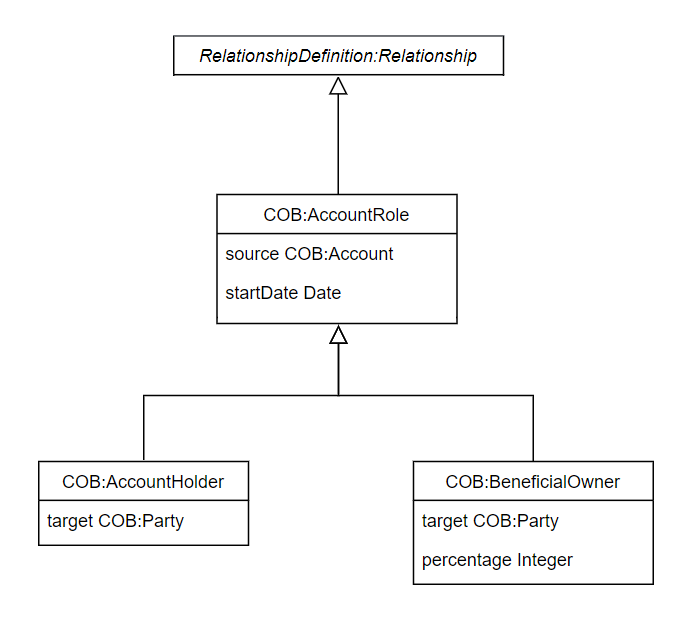
When Relationships are displayed in Studio Runtime, the default Label used for them is the Label Business Object corresponding to the Data Class representing the Relationship. The Business Object Id of this Label is in the format {PackageId}:aw.DataClass.{DataClassId}. For example, for the Data Class Onboarding:AccountHolder, the default Label used by the Relationship Definition App Task is Onboarding:aw.DataClass.AccountHolder. You can use the Edit Labels option in the Process Editor to create and translate such labels. If necessary, this default can be overridden by defining the Detailed Relationship Behavior on the Data Class representing the Relationship. Consider that defining this Behavior on the Data Class is optional.
The Relationships tab of the Relationship Definition and Relationship Review App Tasks provides the following settings:

- In the Relationships field (mandatory), set the binding to the Indexed Collection which contains all Relationship instances managed by the task. The task automatically populates the Collection by adding and removing Relationships when the user adds and removes them in Studio Runtime. Relationships can also be added to the Collection using the script language before or after the Relationship Definition and Relationship Review App Tasks, if necessary.
Note that:
- All Relationships in the Collection must have the source and target properties set to one of the Objects (or Root Objects) managed by the App Tasks, otherwise they are considered invalid. Additionally, it is not possible to have Relationships whose source and target properties are set to the same Object.
- Since the App Tasks manipulate the Collection and changes need to be persisted at the Process level, the Relationships Collection needs to be stored in the Value Store; for example, it can be bound to a Process variable.
- In the Relationship Type field (optional), select the parent Relationship Type: this is the Data Class from which all Data Classes representing Relationships inherit or, in case all Relationships have the same Data Class type, that Data Class. Only Data Classes which inherit from the built-in Data Class
RelationshipDefinition:Relationship can be selected. The default selection is the Data Class RelationshipDefinition:Relationship, from which all Data Classes representing Relationships must inherit. The type of the Collection provided in the Relationships setting must be the same or inherit from the Data Class selected in the Relationship Type setting.
In the Relationship Configuration section, configure the list of Relationship types (Data Classes) that are supported in the task. For example, it is possible to specify that Relationships of type AccountHolder and BeneficialOwner are supported, but not Relationships of type JointOwner. The Data Classes to be supported can be chosen among all Data Classes that inherit from the one selected in the Relationship Type field. The UI allows the user to add only Relationships of the selected Data Class types. If the Relationships Collection set in the same tab contains Relationships whose type is not among the configured ones, those Relationships are considered invalid and can only be removed in the UI.
Note that Relationships whose type is a Data Class which inherits from one of the selected types are also not supported and considered invalid.

- Once Data Classes are added to the Relationship Configuration section, it is possible to reorder them. This defines the order in which Relationship instances are shown in Studio Runtime for each source Object.
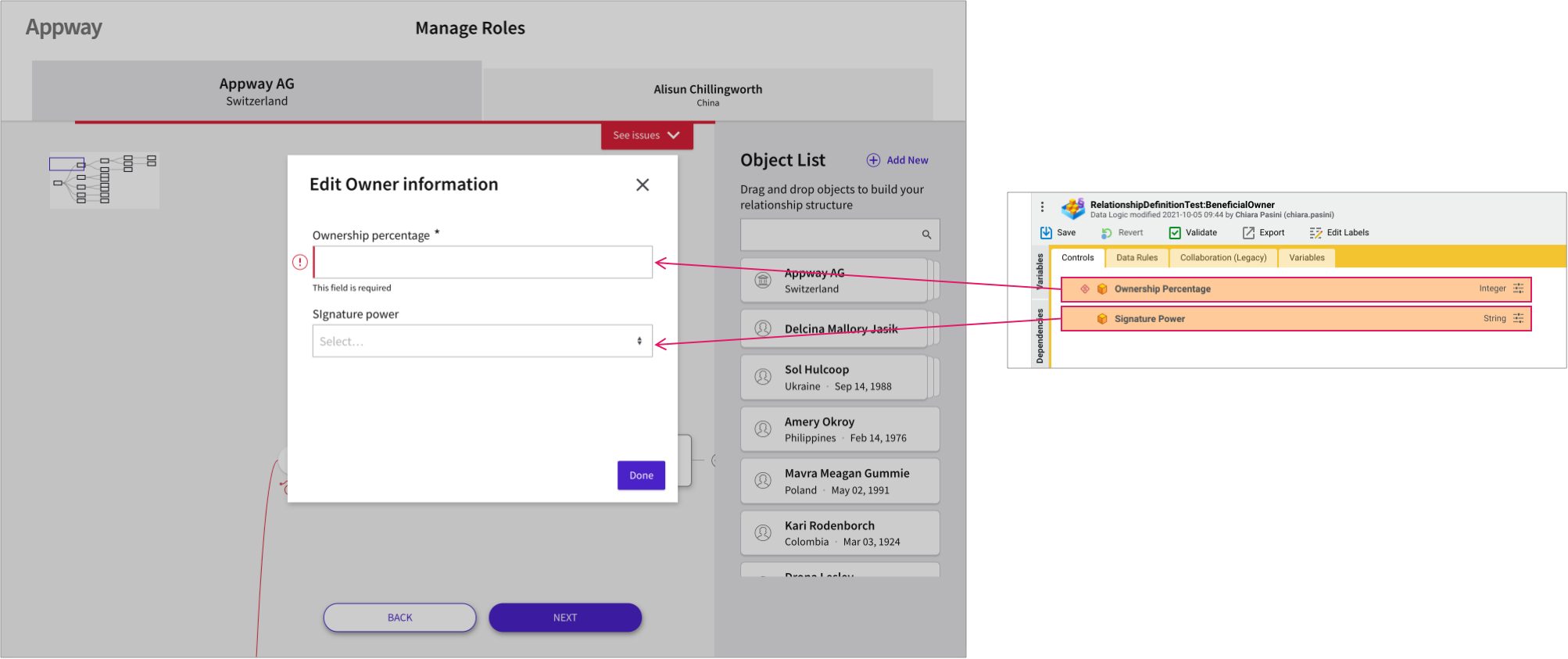
- In the Controls field (optional), you can also select a Data Logic Business Object for each added Data Class. This is used when editing Relationship metadata information in the dedicated Studio Runtime popup. The Data Logic describes all Relationship metadata information to be edited in the popup together with their ordering, grouping, visibility and so on (see Data Logic Controls documentation). If no Data Logic is set for a Relationship type, no metadata editing popup is available in Studio Runtime. Consider the following information about the Data Logic selected for each Data Class:
- The Data Logic must have an Assigned Variable whose type is compatible with the Data Class for which it is selected (same Data Class or a parent Data Class)
- In the Variable Assignments tab of the Relationship Definition or Relationship Review App Task, use the implicitly defined
$relationship variable which contains the Relationship instance the user selected to populate the Assigned Variable of the Data Logic Business Object. - The Data Logic excludes the source and target properties of the Relationship Data Class by default, since these are not part of the metadata information.
- Only the content of the Controls tab of the Data Logic is used. In particular, all Data Rules defined in this Data Logic are ignored. Data Rules that are necessary for Relationship metadata information validation must be specified in the Validation Rules Data Logic (see below).
- Only Data Class, Primitive, Collection of Primitive (with a Catalog Rule), Section Group (without navigation) and Text Controls are supported in the editing popup.
- Additional optional configurations are described in the section below.
Optionally, for each Data Class it is possible to define two types of Sentries, which govern the state of the Relationships of the selected type for users in Studio Runtime: Enabled (for the Relationship Definition App Task only), Disabled, Hidden. Use the Functions available in the Data Class RelationshipDefinition:RelationshipSentryState to return one of these states.
Note that, for the Relationship Review App Task, the Enabled sentry is treated the same as a Disabled sentry and,therefore, has no effect.
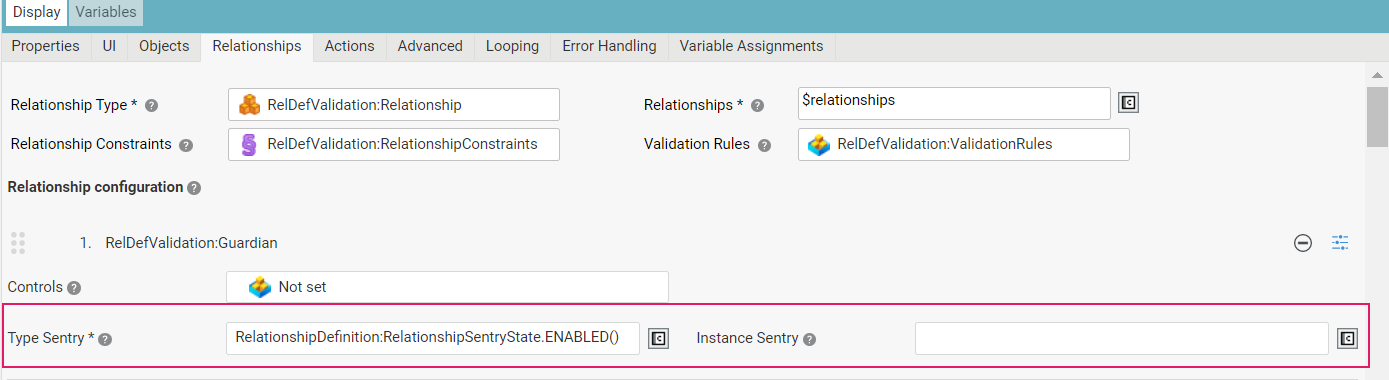
- Type Sentry: Defines whether Relationships of the given type are visible and can be added, removed or updated (for the Relationship Definition App Task only). The value is applied to all instances of that type, unless overridden by the Instance Sentry (see below). It is also applied to Relationship metadata (if any), unless overridden by the Data Logic selected for the Relationship. This setting is mandatory and initialized to
RelationshipDefinition:RelationshipSentryState.ENABLED() for Relationship Definition App Tasks and to RelationshipDefinition:RelationshipSentryState.DISABLED() for Relationship Review App Taskss. If the Type Sentry state is Hidden, all instances are hidden regardless of the Instance Sentry state. Use the implicitly defined $rootObject Variable to refer to the current Root Object in Studio Runtime. - Instance Sentry: Defines whether specific Relationship instances are visible and can be removed or updated (for the Relationship Definition App Task only). It overrides the Type Sentry for specific instances of that type and it is also applied to Relationship metadata (if any), unless overridden by the Data Logic selected for the Relationship. The Instance Sentry field is not mandatory and it is empty by default. If this sentry is empty, the Type Sentry is inherited for all instances; on the other hand, if this sentry returns a value only for some instances, the Type Sentry is inherited for the other instances. Use the implicitly defined
$relationship Variable to refer to the current instance and the $rootObject Variable to refer to the current Root Object in Studio Runtime.
Following are the possible Enabled/Disabled combinations for the Relationship Definition App Task:
-
Type sentry: Enabled; Instance sentry: Enabled
Relationships of that type can be added, and the specific instance can be edited and removed
-
Type sentry: Enabled; Instance sentry: Disabled
Relationships of that type can be added, but the specific instance cannot be edited nor removed
-
Type sentry: Disabled; Instance sentry: Enabled
Relationships of that type cannot be added, but the specific existing instance can be edited and removed
-
Type sentry: Disabled; Instance sentry: Disabled
Relationships of that type cannot be added, and the specific existing instance cannot be edited nor removed
Note: We recommend against having different types of visibility for Relationships of the same type with the same source in a given Relationships tab. For example, if three Relationships of a given type exist but the user sees only two of them while knowing that up to three Relationships are allowed, they may assume that one more Relationship can be added.
The Relationship Definition and Relationship Review App Tasks provide configuration features to specify the Rules to be applied to Relationships. These configurations differ for the two App Tasks
Example of Rules are:
- Each account can have at most 1 account holder and not more than 10 beneficial owners.
- The account holder cannot be a minor.
There are two ways to define Rules on Relationships:
- Using a Rule Business Object. These Rules are enforced by the UI where possible. This option is available for the Relationship Definition App Task only.
- Using Data Rules in a Data Logic Business Object. These Rules are validated, that is, they are not enforced, rather, a validation message is reported to the user in case of violation. This option is available both for the Relationship Definition and the Relationship Review App Task.
The two approaches can be combined in a Relationship Definition App Task to cover the different use cases.
The first type of Rules that can be defined for Relationships is based on the Rule Business Object. These Rules allow expressing the following constraints for a given Object used as source of Relationships:
- Which types of Relationships can be created, including the type of the allowed target Objects (defined by the type of the target property of the Relationship Data Class).
- The minimum number of Relationships of a given type.
- The maximum number of Relationships of a given type
Based on these constraints, the UI does not allow the user to add non-allowed Relationships, or more than the maximum number of Relationships of a given type, and it shows placeholders for mandatory Relationships (minimum number bigger than 0).
These constraints are modeled using instances of a Platform built-in Data Class called RelationshipDefinition:RelationshipConstraint which has the properties:
relationship: a Data Class Reference of the Relationship Data Class being constrainedmin: an integer representing the minimum number of Relationships of the type being constrainedmax: an integer representing the maximum number of Relationships of the type being constrained
Example:
RelationshipDefinition:RelationshipConstraint $constraint := NewObject(RelationshipDefinition:RelationshipConstraint);
$constraint.relationship := DataClass:NewReference('RelationshipDefinitionTest:AccountHolder');
$constraint.min := 1;
$constraint.max := 2;
Return $constraint;
To configure a set of these Rules in a Relationship Definition App Task, select a Rule Business Object in the Relationship Constraints property of the Relationships tab.
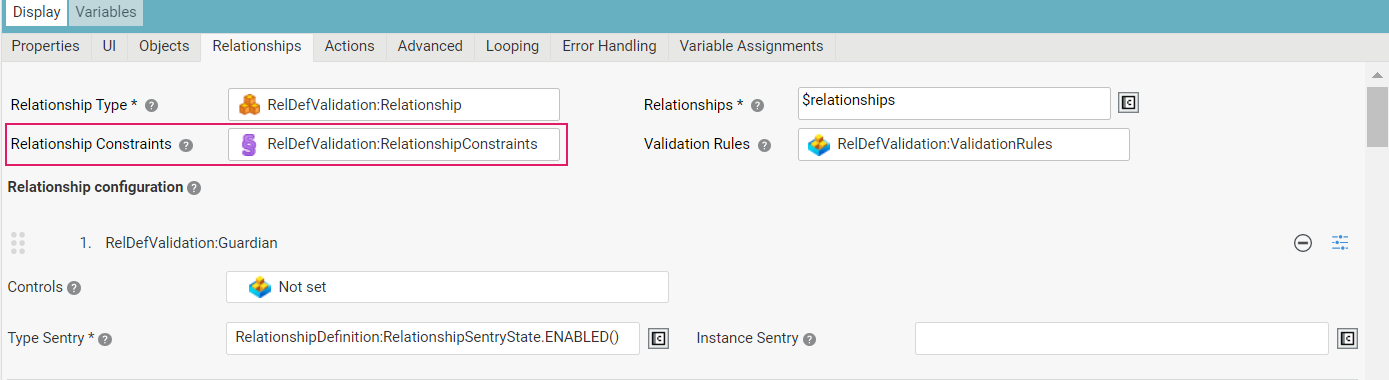
The Return Type of the Rule Business Object must be an Indexed Collection of RelationshipDefinition:RelationshipConstraint. If no Rule Business Object is set, no Rules of this type are applied.

The RelationshipDefinition:RelationshipConstraint instances are built and returned using Data Actions in the Rule Business Object. The Rule Business Object is executed once for each Object provided in the Root Objects Collection and for each Object in the Objects Collection which is reachable from Root Objects. The Rule decision tree goes through decisions such as "is the source Object a legal entity" or "is the source Object age above 18", and finally returns a Collection of RelationshipDefinition:RelationshipConstraint instances, which represent the constraints to be applied considering that Object as a source.
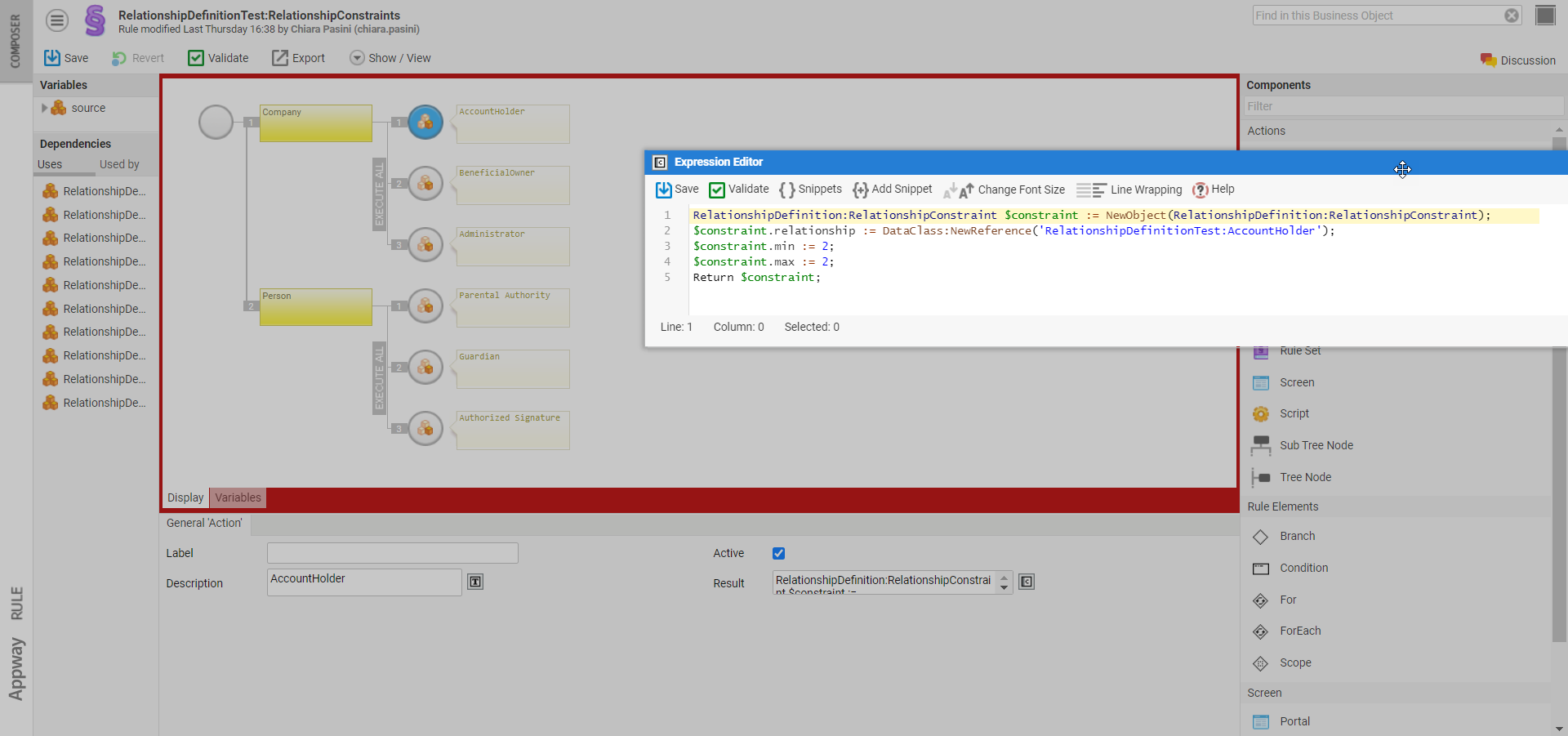
To assign the current source Object, whose constraints must be calculated to the Rule Business Object, an implicitly defined variable called $object is available when assigning variables to the Rule Business Object in the Variable Assignments tab of the Relationship Definition App Task. The type of the Variable is the one selected in the Object Type field.
Additionally, you can define Rules that are dependent on the Root Object currently being displayed. For example, you can specify that a given Relationship type is mandatory for a given Party (Object) only in the context of a specific Account Type (Root Object). This can be achieved by using the implicitly defined $rootObject variable, available when assigning variables to the Rule Business Object in the Variable Assignments tab of the Relationship Definition App Task. The type of the Variable is the one selected in the Object Type field. The variable contains the Root Object currently being displayed
Consider the following information about the constraint specification using the Rule Business Object:
- If the Rule Business Object returns constraints for Relationship types that are not configured in the Relationship Configuration section, such constraints are ignored.
- If the Rule Business Object returns no constraints for a given source Object, no Relationships can be created with that Object as a source.
- If, for a given source Object, the Rule Business Object returns constraints just for a subset of the Relationship types configured in the Relationship Configuration section, all other Relationship types cannot be created with that Object as a source.
- If multiple
RelationshipDefinition:RelationshipConstraint instances are returned by the Rule Business Object for the same Relationship type, they are merged into one. For example, if there are two RelationshipDefinition:RelationshipConstraint instances for AccountHolder, and one of them determines that there should be between 2-5 account holders, and the other one there should be 1-3, then the merged constraint allows 2-3 account holders.
The Script Function RelationshipDefinition:HasRelationshipConstraintViolations allows checking if the App Task contains any violation to Relationship Constraints defined in the Rule Business Object. This can be used in Sentry expression of Custom Actions defined on the App Task and, for example, disable one or more of the Custom Actions accordingly.
Not all Rules on Relationships can be expressed using Relationship constraints and enforced in the UI. For all remaining Rules, Data Rules in the Data Logic Business Object can be used. In particular, Data Rules can be used to express:
- Rules involving metadata information of Relationships, for example "the sum of the percentages of ownership for all beneficial owners must be 100%".
- Rules involving properties of target Objects of Relationships, for example "the account holder cannot be a minor"
These constraints are not enforced in the UI however, if a change made by the user causes a violation of these Rules, the violation is reported with a validation message in Studio Runtime.
To configure a set of these Rules in a Relationship Definition or Relationship Review App Task, select a Data Logic Business Object in the Validation Rules property of the Relationships tab of the App Task.
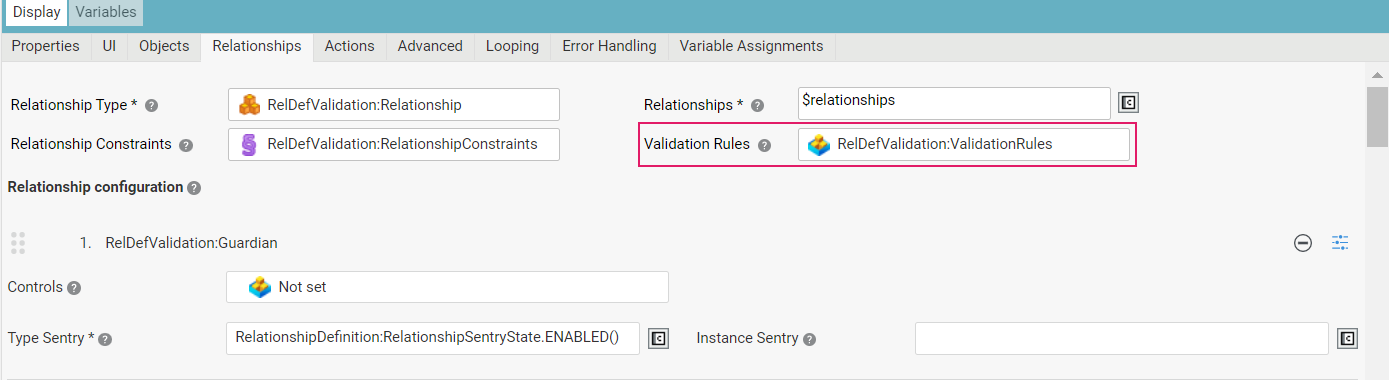
If no Data Logic Business Object is set, no rules of this type are applied. Note that only the content of the Data Rules in the Data Logic is used. In particular, all Controls defined in this Data Logic are ignored.
In the Variable Assignments tab of the Relationship Definition or Relationship Review App Task, any Process Variable can be assigned to the Data Logic Business Object. For example, it is possible to assign the whole Objects Collection and the whole Relationships Collection, or just a subset of those, depending on what needs to be checked using Data Rules. Consider that only violations which are related to Root Objects and Objects and Relationships which are reachable from Root Objects are considered, other violations are discarded. Violations which impact exclusively properties of Objects or Root Objects are also not considered (use the Data Gathering App Task for such validation).
Additionally, you can define Data Rules which are dependent on the current Root Object being displayed. For example, you can specify that a given Relationship metadata field is mandatory only in the context of a specific Account type (Root Object). This can be achieved by using the implicitly defined $rootObject variable, available when assigning variables to the Data Logic set in the Validation Rules field of the Variable Assignments tab in the Relationship Definition App Task. The type of the Variable is the one selected in the Object Type field. The variable contains the Root Object currently being displayed.
The Script Function AppTask:HasBlockingViolations (common to all App Tasks) allows checking if the App Task contains any violation to Data Rules which are defined as Blocking in the Data Logic. This can be used in Sentry expression of Custom Actions defined on the App Task and, for example, disable one or more of the Custom Actions accordingly.
The configuration of most Actions is common to all types of App Tasks.
However, in addition to the Actions configuration available for all App Tasks, the Relationship Definition App Tasks (Relationship Definition and Relationship Review) provide three predefined Actions related to Objects:
- Add Object (available for the Relationship Definition App Task only)
- Go to Object (available for both Relationship Definition and Relationship Review App Tasks)
- Remove Object (available for the Relationship Definition App Task only)

The Add Object Action is triggered when the user selects the option to add a new Object to the Object List. In fact, adding a new Object is not part of the Relationship Definition App Task and must be implemented as a separate process step. This step must take care of adding the selected Object to the Collection set in the Objects field. The Add Object action has the following properties:
- Action Value — Static value set to
addObject. A corresponding connection must be created in the Process. - Label — The action Label.
- Extended Label — The action tooltip.
- Visible — Determines whether the corresponding action is visible in Studio Runtime. If your Relationship Definition does not need the option to add a new Object, you can deselect this property.

The Go to Object Action is triggered when the user selects the option to navigate to a selected Object. In fact, browsing details and editing an Object is not part of the Relationship Definition or Relationship Reviews App Task and must be implemented as a separate Process Task (for example using a Data Gathering App Task). The Go to Object action has the following properties:
- Action Value — Static value set to 'goToObject'. A corresponding connection must be created in the Process.
- Label — The action Label.
- Extended Label — The action tooltip.
- Visible — Determines whether the corresponding action is visible in Studio Runtime. If your Relationship Definition does not need the option to navigate to an Object, you can deselect this property.
- Selected Object — The Variable to be automatically populated at runtime with the Object selected by the user. The type of the Variable must be the same as the one selected in the Object Type setting in the Objects tab or one that inherits from it.
An example of a possible Process configuration supporting Relationship Definition predefined Actions is illustrated in the image below:


The Remove Object Action is triggered when the user selects the option to remove an Object from the Object List. It removes the selected Object from the Object collection and, if the Object is also part of the Root Object collection, it also removes it from that collection. The Action is not available for Root Objects which are not part of the Object collection. The Remove Object action has the following properties:
- Label — The action Label.
- Extended Label — The action tooltip.
- Confirmation Label — The Label Business Object containing the message to be shown when confirming the action.
- Sentry — The conditions that govern the state of the Action for users in Studio Runtime (enabled, disabled or hidden). Use the functions available in the Data Class
Process:ConnectionSentryState to return one of the possible states. Use the implicitly defined $object variable to access the Object being removed. - Post-Remove Script — The logic to be executed when an Object is removed in Studio Runtime. By default, it invokes the Script Function
RelationshipDefinition:RemoveObjectRelationships, which removes all the Relationships handled in the Relationship Definition App Task that have the provided Object set as source or target. Use the implicitly defined $object variable to access the Object being removed.
Data Class Behaviors provide semantic information at Data Class level to ensure that the final representation of the Data Class in a Data Driven UI is coherent with the data contained in the Data Class.
See more resources:
- General information on Data Class Behaviors, their different types, and configuration details in the Data Class Behaviors document.
- Specific information on how Behaviors impact the Relationship Definition App Tasks in the sections below.
The Relationship Definition provides capabilities to define Relationship Objects. Relationship Definition Object Behavior allows showing the relevant information for each Object in the Relationship Definition App Task.
The content of a Relationship Definition Object Behavior is exactly the same as the Summary Behavior, but it is used only in the context of Relationship Definition App Task.
The Relationship Definition provides capabilities to define Relationships between Objects. The Detailed Relationship Behavior allows enhancing the details and information shown next to each Relationship in the Relationship Definition App Task.
Detailed Relationship Behavior is meant to be applied only to Data Classes that are actual Relationships for the Relationship Definition App Task.
All non-configurable Labels are contained in Platform Packages called RelationshipDefinition and AppTask which are deployed when the extensions are started for the first time. Such Labels can be changed using the Overriding Translations feature.
This approach is common to all App Tasks. You can see all details in the
Labels and Translations section of the App Task - Generic Configuration document.
However, the Relationship Definition App Tasks, namely Relationship Definition and Relationship Review, allow configuring specific Label Business Objects through the UI tab of the related App Task in the Process Editor.
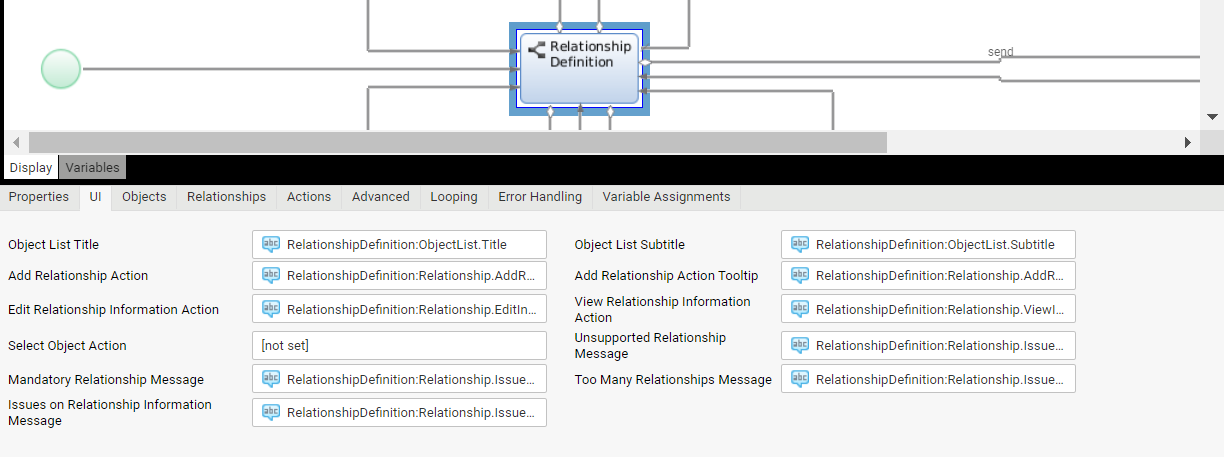
The table below lists all the available Properties UI tab, the App Task they apply to (Relationship Definition (RD) and Relationship Review (RR), respectively), where they usually appear in the UI, and the corresponding Label IDs.
The figure below help you identify some of these Labels in the UI. Note that it is created for illustration purposes only.

| N | Property | App Task | UI Reference | Default Label ID |
|---|
| 1 | Object List Title | RD/RR | Title of list of Objects | RelationshipDefinition:ObjectList.Title |
| 2 | Object List Subtitle | RD/RR | Subtitle of list of Objects | RelationshipDefinition:ObjectList.Subtitle |
| 3 | Add Object Action | RD | Placeholder for adding a target to a Relationship placeholder | RelationshipDefinition:Relationship.AddObject |
| 4 | Add Relationship Action | RD | 'Add Relationship' button | RelationshipDefinition:Relationship.AddRelationship |
| 5 | Add Relationship Action Tooltip | RD | Tooltip for the 'Add Relationship' button | RelationshipDefinition:Relationship.AddRelationshipTooltip |
| 6 | Edit Relationship Information Action | RD | 'Edit Relationship' button | RelationshipDefinition:Relationship.EditInformation |
| 7 | Relationship is not valid Message | RD | 'Relationship is not valid' message | RelationshipDefinition:Relationship.Issue.UnsupportedRelationship |
| 8 | Relationship is required Message | RD | 'Relationship is required' message | RelationshipDefinition:Relationship.Issue.RequiredRelationship |
| 9 | Relationship exceeds cardinality Message | RD | 'No more than x relationships can be defined' message | RelationshipDefinition:Relationship.Issue.TooManyRelationships |
| 10 | Relationship has issues Message | RD | 'This relationship has issues' message | RelationshipDefinition:Relationship.Issue.RelationshipInformation |
| 11 | Fit tree to window Message (referred to the minimap) | RD | 'Fit tree to window' message | RelationshipDefinition:Minimap.Zoom.Fit |
| 12 | Reset zoom Message (referred to the minimap) | RD | 'Reset zoom' message | RelationshipDefinition:Minimap.Zoom.Reset |
| 13 | View Relationship Information Action | RD/RR | View Relationship Information | RelationshipDefinition:Relationship.ViewInformation |
You can brand your solution through the Theme Editor, a tool available in the workspace side of the App Tasks out-of the-box.