The BPA Platform Option is End of Support. See
announcement.
The Best Practice Analyzer is a set of tools that provides support for maintaining high-quality Solutions compliant with Appway Best Practices.
The Best Practice Analyzer contains a set of Studio Modules that guide application developers in the process of checking their Solutions against Appway Best Practices. The tool allows identifying issues and provides guidance to fix them.
The Best Practice Analyzer (from now on, BPA) depends on the Functions Extension. The BPA bundle includes two ingredients:
- BestPracticeAnalyzer Package
- BestPracticeAnalyzer Extension
To install the BPA, follow these steps:
- Import the BestPracticeAnalyzer Package
- Upload the BestPracticeAnalyzer Extension.
- Start the BestPracticeAnalyzer Extension.
- Refresh the Appway Studio page.
Consider the following information:
- Be sure you stop and remove older versions of the BestPracticeAnalyzer or BestPracticesAnalyzer extension in your environment before uploading the new one.
- The Extension does not start if the Package is not correctly imported.
Due to high memory consumption, we suggest using the Best Practice Analyzer only in development environments.
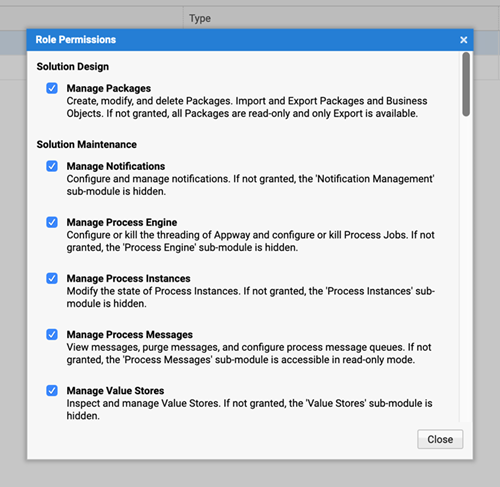
To run the BPA, you need the Manage Packages Permission (System Configuration > Users/Groups/Roles > Roles > [right-click] > Permissions).
For further information on permission management, see Advanced Permissions for Studio and Workspace Access.
The BPA allows adding two configuration properties (System Configuration > Configuration Properties):
bestPracticesAnalyzer.scripts.scriptLength: defines the threshold number of lines to verify the length of Scripts. Any value over the set threshold issues a warning. Default value: 10bestPracticesAnalyzer.variables.variableNameLength: defines the threshold number of characters to verify the length of variable names. Any value under the set threshold issues a warning. Default value: 3
Make sure you add those two properties to prevent the log from being filled with warning messages.
The BPA features the following tools:
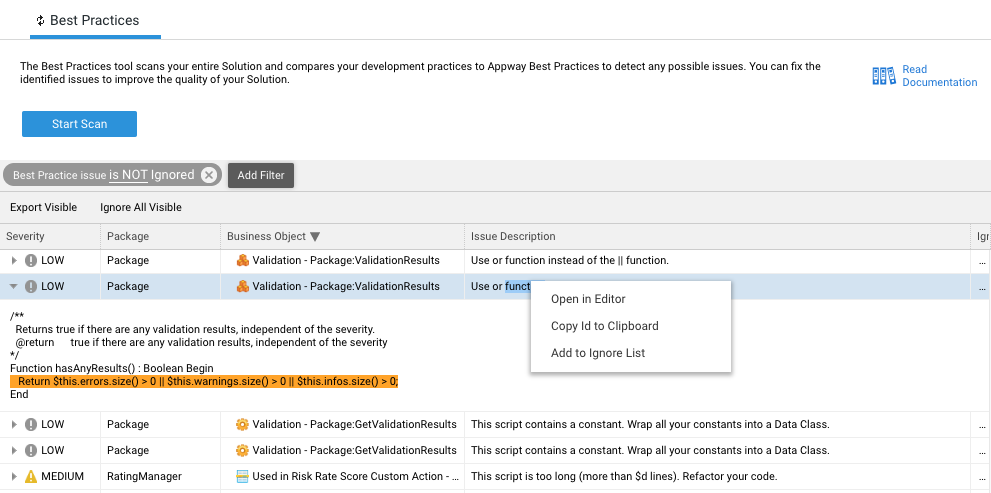
The Best Practices Tool scans your entire Solution and compares your development practices to Appway Best Practices to detect any possible issues. You can fix the identified issues to improve the quality of your Solution in terms of upgradability, readability, performance and robustness. Appway Best Practices are extracted from the Implementation Guidelines .
- Upgradability and maintainability:
The BPA notifies you when you are using features that can make it hard to upgrade or maintain your Solution in the future. For example, checks are performed on features that could be deprecated soon or that could make the upgrade to the next Appway version more complex. Following these Best Practices, you can reduce the upgrade effort for your solution. - Readability:
Improving the readability of your solution helps both yourself and future developers understand the intended design, and to implement changes faster and without introducing regressions. The Best Practices tool allows identifying common readability issues inside Scripts, thus dramatically improving the readability of your code if applied. - Performance:
Some features of the Appway Platform need to be used carefully and in the right context to avoid performance issue. While the BPA cannot cover all the possible use cases, it provides some guidance on features you need to check carefully in your solution.
For example, the BPA warns you when a Script Screen Component is configured to be executed in all phases: in most cases, this configuration is not necessary and increases the response time of pages significantly. - Robustness:
The Appway validation mechanism already checks your solution for design errors. However, there are cases in which a perfectly legit design choice might cause errors if not used carefully. For example, even if it is totally fine to use the DELETEDIRECTORY function, you might want to double check if it is used in the right place and with the right inputs.
The Best Practices Tool findings are classified according to three levels of severity:
- HIGH: items that might cause serious problems (errors or performance issues) in your solution. We recommend addressing these issues as soon as possible.
- MEDIUM: items that might cause minor problems in your solution or upgradability issues. We recommend you addressing these issues before deploying in a production environment.
- LOW: items that might cause minor problems. We recommend checking them with low priority.

Consider you can
exclude a Best Practice check from the scan by setting the
bestPracticeAnalyzer.checks.[Best Practice Technical ID] property to
false. You need to add a property for each Best Practice you want to exclude.
Technical IDs can be found in the PDF table attached in the
List of Checked Best Practices section below.
To run the Best Practices tool:
- Go to Solution Maintenance > Quality Checks > Best Practices.
- Click the Start Scan button to start scanning your solution.
- Once the scan is complete, all the results are shown in a table. Navigate through the issues by using its filter and sort capabilities.
- Click on the carrot icon to see a preview of the issue (if any).
- Right-click on an issue to:
Open in Editor: opens the Business Object editor of the Business Object that contains an issue to fix.
Add to Ignore List: since the BPA can identify false positives, you can mark an issue as ignored. You can also filter the issues and show only not-ignored issues. The ignore flag is saved as a cluster file, therefore it is persistent and shared with other users. - Click on the Export button to export all the issues to a CSV file.
The attached List of Best Practices PDF illustrates all the warning messages that can be returned by the Best Practices Tool and an explanation for each of them.
The Best Practices Tool includes more than twenty checks divided in three main areas: Scripts, Screens and Others.
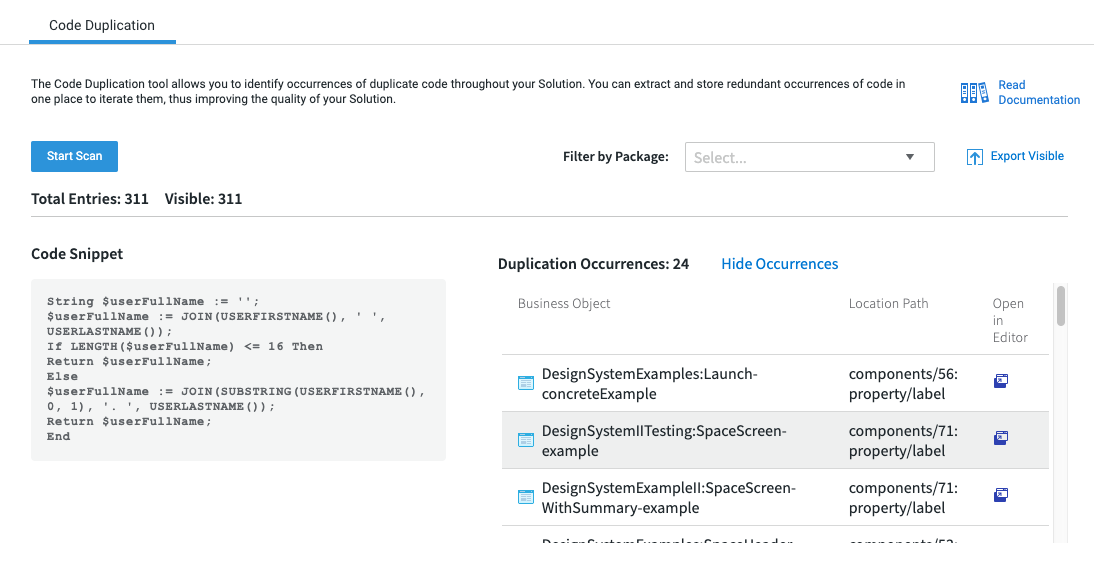
The Code Duplication tool allows you to identify all the occurrences of duplicate code throughout your Solution. You can extract and store redundant occurrences of code in one place to iterate them, thus improving the quality of your Solution.
Code duplication leads to errors and maintenance issues. If you find a bug in your copy and paste code, you need to remember all the occurrences of repeated code and fix them one by one. This is also true for changed requirements. If you keep logic in one place, it is easier to change it when needed. Therefore, consider moving your code into Script Function Business Objects and simply invoke the Script Function instead of duplicating code.
To run the Code Duplication tool:
- Go to Solution Maintenance > Quality Checks > Code Duplication.
- Click the Start Scan button to start scanning your solution.
- Once the scan is complete, all the results are ordered by duplication occurrences. You can filter by Package.
- Click on the Export Visible button to export all the issues displayed on the screen to a CSV file.
For some Screen Components you need to define the HTML Id property to be able to reference them (e.g. for the execution of Actions). Consider that this value must be unique in any rendered HTML page, since non-unique HTML Ids in a page may cause unexpected behavior in the execution of Screen Actions. For more details see the Implementation Guidelines
This tool allows you to identify:
- Cases in which the same string, the same variable name or the same script code is assigned an HTML Id in one or multiple Screens more than once.
- Cases in which the same HTML Id appears in two Screen Business Objects that are never rendered together. Even if this case does not cause HTML Id clashes, it should be avoided anyway.
The tool is not able to identify runtime duplicates, therefore your Solution might still have HTML Id duplicates if the HTML Id value is computed with variables and scripts that generate the same value at runtime.
To run the HTML ID Duplication tool:
- Go to Solution Maintenance > Quality Checks > HTML Id Duplication.
- Click the Start Scan button to start scanning your solution
- Once the scan is complete, all the results are ordered by duplication occurrences. You can filter by Package.
- Click on the Export Visible button to export all the issues displayed on the screen to a CSV file.
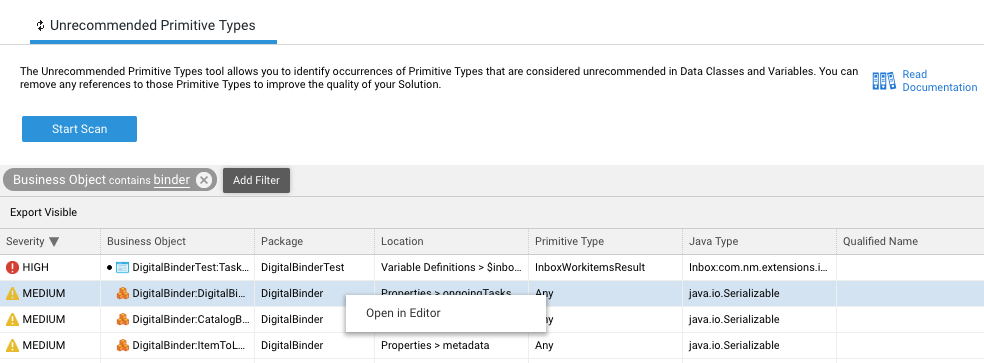
The goal of the Unrecommended Primitive Types tool is to identify (and discourage) the usage of a certain set of primitive types in variables and Data Class properties.
The following list shows how the Unrecommended Primitive Types tool classifies and deals with Primitive Types used in your Solutions. These are classified in three categories:
- 'White List': These Primitive Types are totally safe to be used in the Value Store (see below for a detailed list of their features). The Best Practice Analyzer identifies them, but it does not issue any waning or info message.
- 'Gray List': These Primitive Types are not recommended and they should be avoided when possible, as they might cause issues in the Value Store. The Best Practice Analyzer identifies them, and issues a WARNING message of MEDIUM severity.
- 'Black List': These Primitive Types are not recommended and they must be avoided, as they are more likely to cause issues in the Value Store. The Best Practice Analyzer identifies them, and issues a WARNING message of HIGH severity.
All Recommended Primitive Types (contained in the 'White List') are guaranteed to be:
- immutable: they have a fixed structure that does not change between releases, therefore they are not subject to potentially risky modifications in the future.
- simple: they have a simple structure and their changes are easier to detected. For example, lets' suppose you have a String Data Value, and this value changes. In this case, Appway detects that the value has changed and it has to be updated in the Value Store On the contrary, complex Primitive Types in the Value Store might cause issues in understanding if a Data Value has changed. For example, if you have a User Data Value Primitive Type and you change the first name, Appway might fail to detect that the Data Value needs to be updated in the Value Store.
- serializable: they can always be materialized.
- generated from the core Platform: they are always generated by the core Platform. On the contrary, some other Primitive Types are generated from extensions. Since it cannot be guaranteed that the extension is up and running before the Value Store, Primitive Types generated from extensions might cause de/serialization issues if not carefully managed in the extension.
- compatible with Business Data Storage.
For all these reasons, we strongly suggest using ONLY Recommended Primitive Types in Solutions.
Following is a complete list of Recommended Primitive Types:
- Boolean
- ClusterFile
- Date
- Double
- Float
- Integer
- LocalFile
- Long
- Money
- String
- All the variables whose Primitive Types are created by WebServices extension and have as Java type "java.lang.String" or "java.lang.Integer".
Unrecommended Primitive Types are of two types and issue WARNING messages with different severities:
- Medium-severity Primitive Types (included in the 'Gray List'): These primitive types are less likely to cause issues in the value Store, but it is still recommended to limit their use whenever possible.
- High-severity Primitive Types (included in the 'Black List'): These Primitive Types are more likely to cause issues in the Value Store and are their use must be avoided
Following is a complete list of Unrecommended Primitive Types issuing a medium-severity warning message:
- Any
- BusinessObject
- Calendar
- ChatMessage
- DataLogicCollaboration.ParticipantInfo
- DataTableFilter
- DataTableResultSet
- DataTableSorter
- DateRange
- DiscussionMessage
- Duration
- Exception
- FilterTrayCollectionFilter
- FilterTrayRangeFilter
- FilterTraySort
- NotificationMessage
- Range
- Record
- RestClient
- SOAPAttachment
- SearchFieldContent
- StringBuilder
- User
- WorkItemBaseFilter
- WorkflowInstance
- WorkflowMessage
- Workitem
- XmlNode
Following is a partial list of Unrecommended Primitive Types issuing a high-severity warning message (please, find some examples below the list). The list is not complete as some of these primitive Types can be created in custom extensions:
- DataColumnModel
- ValidationResult
- WorkItemAndFilter
- WorkItemNotFilter
- WorkItemOrFilter
- WorkflowToken
- HttpRequest
- HttpResponse
- AwsEC2Client
- ...
Examples:
- WorkflowToken: Values of this Primitive Type are Appway-internal data structures representing Process Tokens. It may look like a rather simple type with only few properties, but it also contains references to all parent and child Process Tokens, and the Process Instance itself. This may make it a heavy object when stored in a Value Store. Furthermore, Process Tokens and Process Instances are objects which are actively managed by Appway (load, store, lock, ...). Serializing and deserializing such an object in a Value Store creates an unmanaged copy of this object. Changes to a copy of a Process Instance or Process Token are not visible anymore to Appway, and changes done by Appway to the original Process Instance or Process Token are not visible to the holder of the copy. And since serialization and deserialization is managed by Appway and outside of the control of an Appway developer, the exact moment of getting a copy is highly unpredictable.
- HttpRequest and HttpResponse: Values of these Primitive Type are HTTP requests and HTTP responses. The underlying Java type is only an interface, while the actual implementation depends on the application server used to host Appway. According to the specification, implementations do not need to be serializable. They may also contain complex implementation-specific internal data structures and the state of such a request and response object is undetermined after the HTTP request has been processed.
- AwsEC2Client: Values of this Primitive Type are client objects used to communicate to Amazon's AWS EC2 service. The underlying Java type is implemented in the AmazonWebServices extension. If this extension is not installed or not running, Appway fails to deserialize values of this type from a serialized Value Store. The same applies to all Primitive Types implemented in extensions.
To run the Unrecommended Primitive Types tool:
- Go to Solution Maintenance > Quality Checks > Unrecommended Primitive Types tool.
- Click on Start Scan to start scanning your Solution.
- Once the scan is complete, all the results are shown in a table. Navigate through the issues by using its filter and sort capabilities.
- Right-click on an issue to open the Business Object editor for the Business Object containing the variable/property.
- Click on the Export button to export all the issues to a CSV file.
This tool is only available for the Business Practice Analyzer 2.0 and higher compatible with Appway 9.1 and higher.
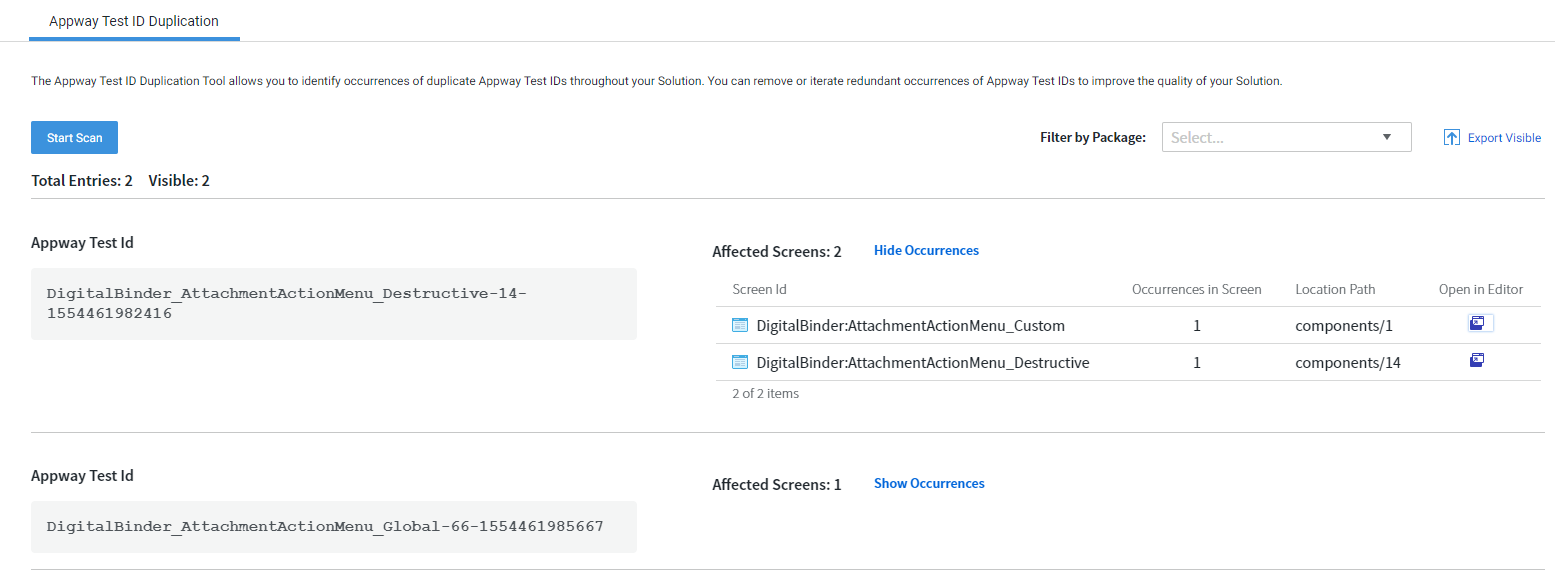
The Appway Test ID Duplication Tool allows you to identify occurrences of duplicate Appway Test IDs throughout your Solution.
Test IDs are automatically generated by the Appway Platform for all the Screen Components used in your Solution, but they can also be set manually. Each Test ID must be unique to avoid errors and unexpected behavior. For complete information, see the End-to-End Testing documentation.
To run the Appway Test ID Duplication Tool:
- Go to Solution Maintenance > Quality Checks > Appway Test ID Duplication.
- Click the Start Scan button to start scanning your Solution.
- Once the scan is complete, all the results are ordered by duplication occurrences. You can filter by Package to limit the displayed results.
- Click the Show Occurrences button to display further details (affected Screens, path and so on). For each duplicated ID, you can also click the Open in Editor button to open the affected Screen.
- Click on the Export Visible button to export all the issues displayed on the screen to a CSV file.
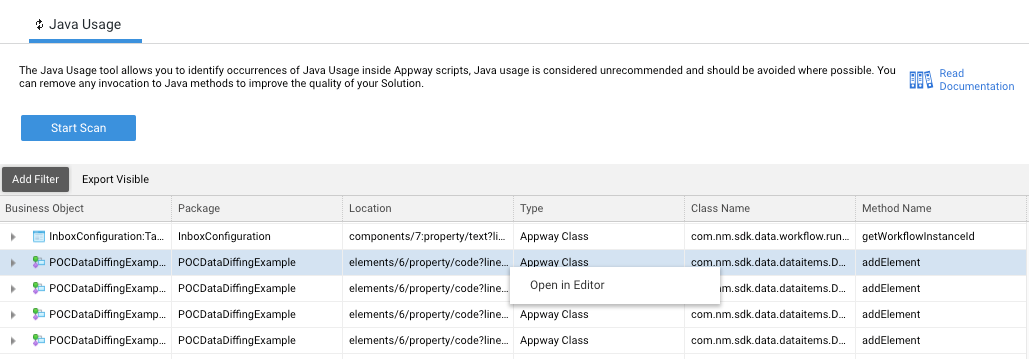
The Java Usage Tool allows you to identify occurrences of invocation to Java methods and classes inside Appway Scripts in your Solution.
Starting with Appway 10, several direct and indirect usages of Java in the Script Language generate validation warnings. This is part of a project to remove dependencies from Appway solutions on Java code. See System Upgrade: 9.1. to 10.
To run the Java Usage Tool:
- Go to Solution Maintenance > Quality Checks > Java Usage.
- Click the Start Scan button to start scanning your Solution.
- Once the scan is complete, all the results are shown in a table. Navigate through the issues by using its filter and sort capabilities.
- Right-click on an issue to open the Business Object editor for the Business Object containing the variable/property.
- Click on the Export button to export all the issues to a CSV file.
The following elements are required to use the Best Practice Analyzer:
- BestPracticeAnalyzer Package, which can be downloaded from the the Products page.
- BestPracticeAnalyzer Extension, which can be requested from Appway Support.
Note: As a general rule, we recommend avoiding the use of the
CONTEXT() function. Please, see the
Scripting Best Practices article for complete information.
| Function (Bad Practice) | Explanation |
|---|
CONTEXT().getWorkflowInstanceService().getWorkflowInstanceIds() | Using the CONTEXT().getWorkflowInstanceService().getWorkflowInstanceIds() function is not recommended. You can access Process Instances with the LocalProcessInstanceIds($processInstancePredicate) or ProcessInstanceIds($processInstancePredicate) functions.
LocalProcessInstanceIds() allows removing the direct call to the CONTEXT() function, which is planned to be deprecated soon. |
CONTEXT().getWorkflowInstanceService().getWorkflowInstancesRO() | Using the CONTEXT().getWorkflowInstanceService().getWorkflowInstancesRO() function is not recommended. To limit memory consumption, you can access Process Instances using the LocalProcessInstanceIds($processInstancePredicate) function, and load each Process Instance through Process:GetReadOnlyInstance, passing in the ID. |
CONTEXT().getUserService().getUserIds() | It is not recommended to retrieve all users. Therefore, avoid using the CONTEXT().getUserService().getUserIds() function. If it cannot be avoided, use User:ListIds(). |
CONTEXT().getWorkflowInstanceService().getWorkflowInstance() | Using the CONTEXT().getWorkflowInstanceService().getWorkflowInstance() function is not recommended as this locks the fetched Process Instance. Use Process:GetReadOnlyInstance instead if no modification to the Process Instance is required. |
CONTEXT().getValueStoreService().getValueStoreIds() | Interacting with value store objects directly is not recommended. Avoid using the CONTEXT().getValueStoreService().getValueStoreIds() function inside Solution Business Objects, as this causes heavy memory consumption. |
UseValuestoreRO | Interacting with Value Store objects directly is not recommended. Use the UseValuestoreRO() function only for incident troubleshooting. Avoid using it inside Solution Business Objects, as it causes heavy memory consumption. |
SelectBusinessObjects() | Using the SelectBusinessObjects() function is not recommended as it causes heavy memory consumption. |
CONTEXT().getClusterFileService().getClusterFileIds()
ListClusterFiles() | Using the getClusterFileIds() and ListClusterFiles() functions is not recommended as they do not consider evicted cluster files, and therefore not all files are retrieved. |
ProcessInstanceIds() | Using the ProcessInstanceIds() function without a predicate is not recommended. You should filter by using ProcessInstancePredicate whenever possible, otherwise you could use LocalProcessInstanceIds($processInstancePredicate). |
| Function or Operator (Bad Practice) | Recommended Function or Operator |
|---|
| .size() | SIZE |
new | NewObject |
| NEWARRAY | NewIndexed |
| NEWMAP | NewNamed |
| ASSIGN | := |
| && | and |
| || | or |
| ! | not |
| LESS | < |
| LESSEQUAL | <= |
| GREATER | > |
| GREATEREQUAL | >= |
| EQUAL | == |
| ADD | + |
| SUB | - |
| MUL | * |
| DIV | / |
| DATAPATH | ABSOLUTEPATH |
| DELETEFILE | RM |
| PARSEDATE | TODATE |
isa | ISA |
mod | MOD |
div | DIVV |