The Format Business Object has been designed to:
- Define all number formats for your application in one place, closer to the data model.
- Reuse common number formats in different parts of your Application to ensure number formatting consistency.
The Format Business Object has been designed to be used mainly with the Data Gathering, but its functionalities can also be applied to other contexts. Therefore, consider the following important information:
- In the context of the Data Gathering, Format Business Objects are handled automatically by the UI, with no action required by the developer, except defining and assigning Formats at Data Class level (see details in the dedicated section below).
- In all other contexts, Format Business Objects are not used directly but they can be invoked through the
Format:Number Script Function (see details in the dedicated section below).
The following example illustrates the capabilities of the Format Business Object.
Let’s assume you are building an Application using the new capabilities available with the Data Gathering, and you need to have a list of Parties (e.g. companies)
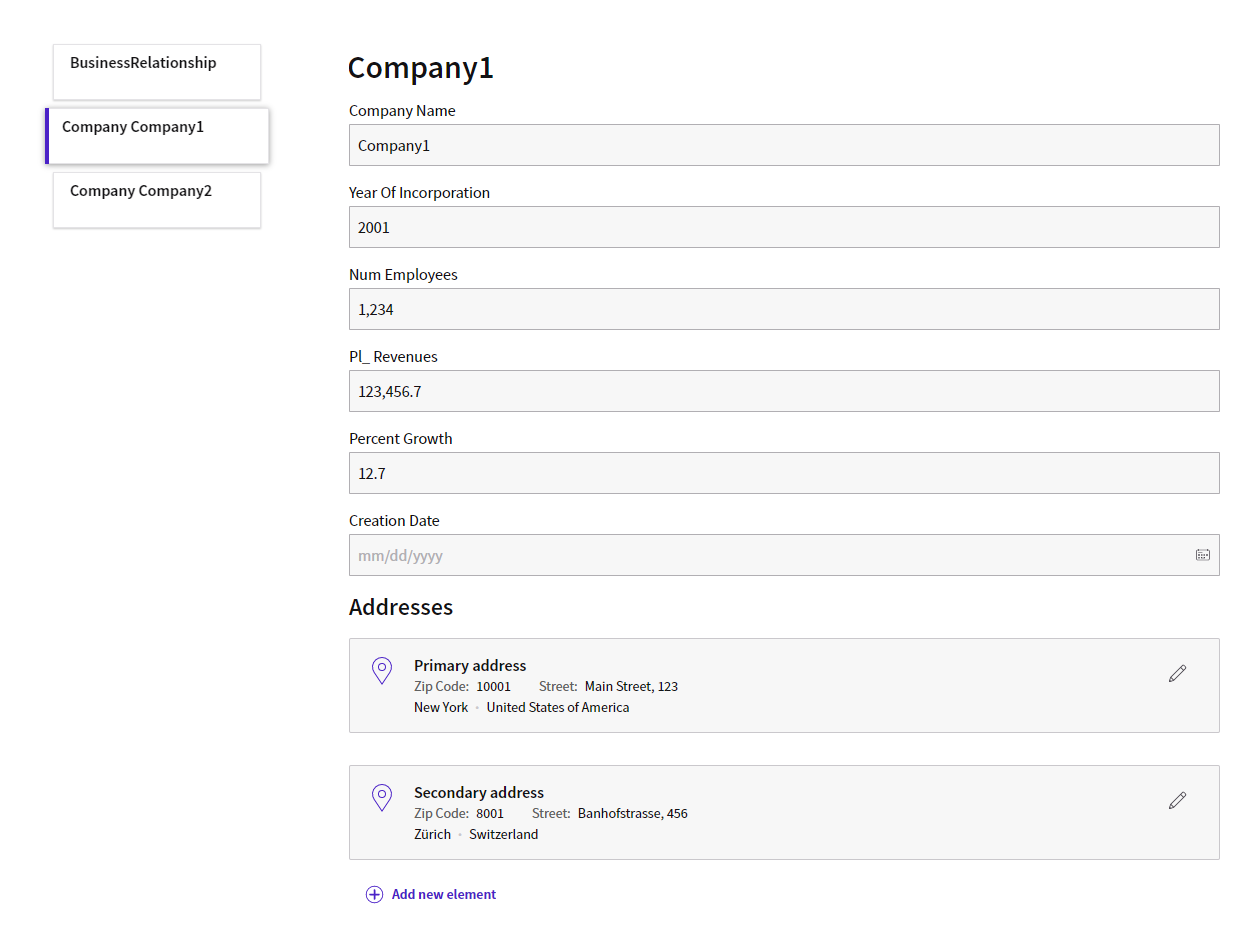
You might need to fill in the following information for each Party:
- Entity name — String type property (e.g. MyCompany)
- Year of foundation — Integer type property (e.g. 2001)
- Number of employees — Integer type property, optionally with a grouping separator (e.g. 2,000)
- Last year’s revenue (in CHF) — Double type property with two decimal digits, optionally with a grouping separator (e.g. 123,456.81 CHF)
- Company growth (%) — Double type property with one decimal digit (e.g. 7.3 %)
As illustrated in this example, you might encounter the following issues in the representation of such number formats:
- All these numbers have different formats.
- These numbers have different locales, meaning they can be written differently in different languages and/or countries.
- Number formatting is relevant not only in field inputs but also when showing numbers in output such as label or PDF documents and other areas of your Application.
In the following sections, we will analyze how the Format Business Object tackles such issues.
The Format Business Objects is a lightweight Business Object available from the Business Object library. The relevant Format Business Object is assigned to Data Class properties, thus allowing a consistent formatting of properties of the same type (See dedicated section below).
Note that Format Business Objects are not available in the Base Package.
There are two types of Format Business Objects, applicable to different number types:
- Integer, Long — Formats applicable only to Integer or Long numbers. The format allows specifying whether to show a grouping separator (e.g. thousand separator).
- Double, Float — Formats applicable only to decimal numbers. The Format allows specifying whether to show a grouping separator, as well as the maximum number of decimal digits that are expected for the number.
Note: Other aspects of numbers are driven by the Locale set on the Application. More information can be found in the dedicated
section.
The advantages of the Format Business Object are the following:
- Modularity — You just need to define the necessary Format Business Object and apply to all relevant Data Classes
- Semantics — You can actually provide a name to each Format Business Object, which makes it easier to remember (e.g. the Year Format Business Object that can be used for all year-type formats).
To create, configure, and apply a Format Business Object to a Data Class, follow these steps:
- Under Solution Design > Business Objects, select Format. Right-click on the central area and select New Format.
- Fill in the optional properties, and select the Type:
- Integer, Long
- Double, Float
- Once created, click on it to open the right panel, where you can apply some configurations.
- For Integer, Long
- For Double, Float
- Show Grouping Separator
- Precision – Select the number of decimal digits
- You can now apply such Format Business Object to the relevant properties of the Data Class/es. For example, if you are configuring a Data Class called YearOfFoundation of type Integer (Configuration tab), click on the Format field to open the selector, which displays the compatible Format Business Objects (e.g. the Year Format Business Object).
Note: if a Data Class property does not require a particular format, the Format can be left unset.
Other aspects of number formatting are not driven by the Format Business Object itself, but by the Locale set at the Application level. To determine what locale is used in users' web browsers, Appway processes the same ten steps used for language priority, and finally checks whether a specific formatting Locale has been defined at the user level.
See the Number and Date Localization section in the Data Gathering
documentation, which provides full information on how the Locale is determined.
The Format:Number Script Function converts a number into a String by using the Format passed in the function.
As mentioned above, the Format Business Object has been designed to be used mainly with the Data Gathering. However, when working outside the Data Gathering App Task, you have the possibility to use the Format:Number Script Function to format numbers in a consistent way in your Application.
The Format:Number Script Function is contained in the Functions Extension (mandatory Extension).
The Format:Number Script Function comes in two forms:
-
(Recommended) This form accepts only a single parameter of type Expression containing a property of a Data Class. If the property has a Format Business Object assigned in the Data Class definition, it is automatically applied by the Script Function.
String Format:Number ( DataValue $value )
-
This form can be used when you have a generic number (possibly, when it is not a property of a Data Class).
String Format:Number ( Integer $value, Format:Reference $format )
String Format:Number ( Long $value, Format:Reference $format )
String Format:Number ( Float $value, Format:Reference $format )
String Format:Number ( Double $value, Format:Reference $format )