In Appway, there are jobs that run in the background and take care of different parts of the system, e.g. the process engine or clean-up jobs. The Job Scheduler tab monitors these jobs and allows users to manage jobs. Managing jobs includes pausing them, or setting the schedule on which they should trigger.
Elasticity is a key topic in Appway, and starting from Appway 11, the scheduling of jobs is fully elastic.
First of all, let's summarize how jobs are scheduled. Every node in the Appway cluster has a local scheduler, and such scheduler is responsible for executing a job when its associated trigger is fired.
The scheduler can be in one of the following states:
The trigger is the mechanism by which jobs are scheduled. In Appway a trigger has the following characteristics:
- it can only point to one job
- it is always a cron expression
As mentioned above, starting from Appway 11, we want to achieve full elasticity, meaning that we aim at having schedulers and triggers which are transparently aligned among cluster nodes. Here is how the Scheduler algorithm works:
When scheduling a job, we privilege the state of the running cluster compared to local configurations. In other words, if a job already exists in a running cluster, its state is used when scheduling the same job on another node (e.g. a joining node).
Local configurations are used only if the node that 'wants' to schedule the job is the first node forming the Appway cluster.
Following this principle, when a node 'wants' to schedule a job will set the following:
- Scheduler state
- Trigger cron expression
- Trigger state
Based on the existence of the job in other cluster nodes, the behavior is the following:
| Setting | Job exists | Job does not exist |
|---|
| Scheduler state | Aligns with the state in the cluster | Sets to 'Started' |
| Trigger cron expression | Aligns with the runtime cron expression in the cluster | Uses the local cron expression which could be hard-coded or set in a configuration property |
| Trigger state | Aligns with the state in the cluster | Sets to 'Started'. Pauses the trigger if forced by some business logic or configuration property |
Access the Job Scheduler tab via System Maintenance > System Overview > Job Scheduling.
The table on the Job Scheduler tab displays a list of all active jobs within the entire cluster. The following information is available:
- Name – Displays the job name. Click on the arrow to the left of the job name for details on its function.
- Group – Displays the group the job belongs to.
- Node – Displays the name of the cluster node where the job is active. "All" refers to entries in the table related to the cluster as a whole.
- Execution Strategy – Specifies if the job is running "On one node", "On all nodes" or "Unknown (on all nodes)".
- Status – Displays the status of the job:
- PAUSED: the job is paused
- BLOCKED: the job is blocked
- COMPLETE: the job has no more fire-times in its schedule
- ERROR: an error occurred
- NONE: no trigger is associated with this job
- NORMAL: normal running state
- UNKNOWN: default status when none of the previous applies
- Next Execution Check – Specifies when the job will run next.
- Last Execution – Specifies when the job last ran.
- Runs – Displays how many times the job has already run.
- Errors – Displays how many times the job experienced an error.
- Run Time (min) – Displays the minimum execution time of the job.
- Run Time (avg) – Displays the average execution time of the job.
- Run Time (max) – Displays the maximum execution time of the job.
For clusters consisting of more than one node, information from individual nodes is merged and displayed in an entry where the Node column contains "All". Every column has a different way of merging the information:
- Name – No need to merge, the job name is the same for all nodes.
- Group – No need to merge, the group name is the same for all nodes.
- Node – Static, "All"
- Execution Strategy – No need to merge, the execution strategy is the same for all nodes.
- Status– A concatenation of the status of each individual node (e.g. PAUSED/NORMAL).
- Next Execution – The closest Next Execution value of all individual nodes.
- Last Execution – The most recent Last Execution value of all individual nodes.
- Runs – The sum of Runs of all individual nodes.
- Errors – The sum of Errors of all individual nodes.
- Run Time (min) – The minimum Run Time (min) of all individual nodes.
- Run Time (avg) – The average Run Time (avg) of all individual nodes.
- Run Time (max) – The maximum Run Time (max) of all individual nodes.
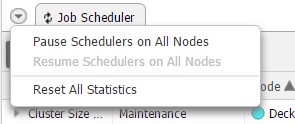
Click on the triangle icon next to the Job Scheduler tab and select Pause Schedulers on All Nodes. This prevents all of the jobs in the entire cluster from being scheduled and executed. To restore the scheduler, select Resume Schedulers on All Nodes.
Click on the triangle icon next to the Job Scheduler tab and select Reset All Statistics.
Click on the two circular arrows next to the tab name to refresh the information in the table.
Sort all columns in ascending or descending order by clicking on the small triangle icon in the column header.
Filter any column by hovering the mouse cursor above the column header and clicking on the magnifying glass icon.
At the bottom of the table you can see how many of the jobs satisfy the filter (e.g. 17 of 19 Jobs).
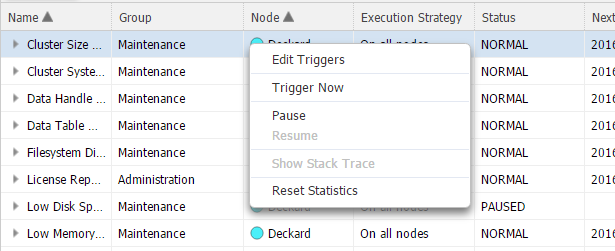
Use the right-click menu to manage jobs:
- Edit Triggers (Whole Cluster) – Select this option to open a new window where information like Name, Description, Type, Status, Execution and Next Execution is listed. This information is read-only apart from Execution where you can edit the cron expression which defines when the job is executed.
- Trigger Now (Whole Cluster)/Trigger on Node [nodeName] Now – Triggers the immediate execution of the job on all of the nodes or the selected one (depending on the row type).
- Pause on All Nodes/Pause on Node [nodeName] – Pauses the execution of the job on all of the nodes or the selected one (depending on the row type).
- Resume on All Nodes/Resume on Node [nodeName] – Resumes the execution of the job on all of the nodes or the selected one (depending on the row type).
- Show Stack Trace – Displays the stack trace if an error occurred.
- Reset Statistics for All Nodes/Reset Statistics for Node [nodeName] – Resets the statistics of all of the nodes or the selected one (depending on the row type).
For related information on the Job scheduler, also see: Job Scheduler Troubleshooting