Activities and Connections
Activities
Activities are actions that need to be performed during Process execution.
Activities have a blue rectangle shape in the Process Model. Examples are shown in the figure below.
If you add a Screen activity in the Process design, when you start an instance and the token lands on that activity, a Screen BO tied to it is shown. You have an App Task activity, then an App Task such as Data Gathering is shown.
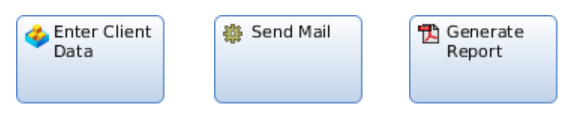
Types of Activities
Automatic/Inline Activities
Some Activities are executed by the Process Engine directly (Script, Evaluate Rule Set or Generate PDF). When the Process reaches such an Activity, it is executed in line and the Process continues immediately.
Manal/Participant Activities
Other Activities have to be performed manually by a Participant. An Activity is assigned to a Participant by moving the Activity component into the Participant's Swimlanes. Activities to be performed by a Participant are prepared for execution by the Process Engine.
An example of such activity is a Data Gathering task, where the user needs to click and perform some operations to proceed.
Another example is a Screen Activity. For Screen Activities, a new Process Instance is created, the scope for the Process Instance is initialized (see Variable and Scopes for more details) and the Process Service is called to start the Process Instance. Then, the Process Engine waits until the Activity has been completed by the Participant. When the Activity has been completed, the Process Engine continues the execution.
Looping
When a loop is defined on a Process activity, there are several loop-specific properties set on the Process token that help identify the actual stage of the loop processing.
List of Activities
For every type of Activity there is an Activity Handler registered in the Process Engine. When a Token activates an Activity, the Activity Handler is called. Depending on whether the Activity is an Inline Activity or a Participant Activity, the Activity Handler executes the Activity directly (Script, Evaluate Rule Set and Generate PDF) or it initializes the execution of the Activity (Screen and Sub-Process).
Every incoming Token triggers an independent execution of the Activity. Therefore, multiple instances of an Activity can be active at any given time.
If an Activity has been completed, the Process Engine schedules a Token for the activation of outgoing Connections.
AI Agent
The AI Agent activity allows invoking an AI Agent from an FNZ Studio Process to provide inputs to the agent and retrieve its output.
For full information on properties, see AI Agents.
Evaluate Rule
The Evaluate Rule Activity can be used to execute a Rule. The result of this execution is a list with Action objects (e.g. 'PDF Output' Actions). This list could then be passed to the 'Generate PDF' Activity to generate a PDF file. The Rule is initialized using the Variable Assignments defined on the 'Evaluate Rule' Activity (Variable Assignments tab).
Evaluate Rule properties are:
| Field | Description |
|---|---|
| Rule | Rule to execute. |
| Actions Binding | Binding Expression used to save the Rule Actions triggered by the Rule evaluation. It is usually the name of a variable such as $actions. The Variable should be of type Collection with Indexed Entries with base type Action. |
Evaluate Rule Set
The Evaluate Rule Set Activity can be used to execute the Rules of a Rule Set. The result of this execution is a list with Action objects (e.g. PDF Output Actions). This list could then be passed to the Generate PDF Activity to generate a PDF file.
Evaluate Rule Set properties are:
| Field | Description |
|---|---|
| Rule Set | Rule Set to execute |
| Actions Binding | Binding Expression used to save the Rule Actions triggered by the Rule Set evaluation. Usually the name of a variable like $actions. The Variable should be of type Collection with Indexed Entries with base type Action. |
Generate PDF
Given a list of Action objects (such as the result of an Evaluate Rule Set Activity), this Activity can be used to generate a PDF file.
Generate PDF properties are:
| Field | Description |
|---|---|
| Actions Binding | Binding Expression used to get the PDF Output Actions. Usually the name of a variable like $actions. The Variable should be of type Collection with Indexed Entries with base type Action. |
| Configuration Binding | Binding Expression used to get the PDF Render Configuration. Usually the name of a variable like $configuration. The Variable should be of type PdfRenderConfiguration. |
| Document Set | The Document Set used in the PDF Generation Process. |
| Outlines | If set to true, the PDF is generated with Outlines (Bookmarks). |
| Duplex | If set to true and a Document has an odd number of pages, the PDF Generator inserts an additional blank page before the next Document. |
| Copies | Number of copies. |
| Text Language | The Language used to translate Language Label references in the generated PDF. |
| PDF Language | The Language used to select the PDF Outputs. |
Integration Link
This Activity is used to o execute an Integration Link within a Process flow. See also Integration Link Business Object.
Integration Link properties are:
| Field | Description |
| Integration Link | Specific Integration Link to be called by this task. |
| Bind Reply | Select it if the returned value from the Integration Link should be bound to a data entity. |
| Return Value Binding | Provide a binding expression for the return value to assign it to a data class or primitive type. |
| Asynchronous | Select it if the Integration Link should be executed asynchronously; note that the process token waits until the Integration Link completes before moving on. |
| Version Filter | Set the version filter to specify which Business Object versions to use in the linked Integration Link chain (e.g., Same Version (inherited) or Newest Committed Version (Timestamp)). This value affects how other Business Objects are processed during execution. |
Redirect
A Redirect Activity can be used to send a token to a specified URL. For example, it can redirect the user to a task list or another URL.
Redirect properties are:
| Field | Description |
| URL | Target destination. You can specify a dynamic expression. |
Screen
A Screen is used to assign a Screen Activity to a Process Participant. When a Screen Activity is activated, a Screen Instance is created and initialized using the Variable Assignments defined on the Screen Activity (see the Variable and Scopes article for more details). It's the responsibility of the Screen service to report back to the Process Engine when the Screen Activity has been completed.
Screen properties are:
| Field | Description |
|---|---|
| Screen | Screen to start |
Script
Script Activities can be used to execute arbitrary Expressions or Scripts. Script Activities are executed in line which means that the Process Engine doesn't assign this Activity to a Participant but evaluates the code directly. The Script Activity completes as soon as the Expression has been evaluated. The return value of the Expression is discarded.
If the Script Activity execution produces an error, the Process Instance is suspended immediately.
Script properties are:
| Field | Description |
|---|---|
| Code | Expression or Script to be executed |
Send Mail
The Send Mail Activity allows sending an email message via an SMTP server.
Send Mail properties are:
| Field | Description |
|---|---|
| From | Email sender address. |
| To | Recipient email address(es), multiple recipients are separated by semicolon (;) or comma (,). |
| Cc | (Optional) Copy recipients, multiple recipients are separated by semicolon (;) or comma (,). |
| Bcc | (Optional) Blind copy recipients, multiple recipients are separated by semicolon (;) or comma (,). |
| Subject | Subject of the email. |
| Text | Content of the email message. |
| Content Type | Choose between plain text or HTML |
| Alternative Text | If HTML is used, provide plain text alternative. |
| Configuration | Select one of the previously created outgoing mail configurations. |
| Encoding | Set the message encoding |
| Archive Path | (Optional) path to folder or file where sent mails are stored. |
| Attachments | Specify up to four attachments. Attachments can be static (path relative to Data Home) or dynamic using expressions. |
Sub-Process
A Sub-Process is used to integrate another Process into the current Process. The Sub-Process is initialized using the Variable Assignments defined on the Sub-Process Activity. The Sub-Process Activity has its own Token Set and ends when there are no more Tokens in it. When the Sub-Process ends, the Sub-Process Activity is completed.
Sub-Process properties are:
| Field | Description |
|---|---|
| Process | Process to start as Sub-Process |
Ad-Hoc Sub-Process
An Ad-Hoc Sub-Process allows the user to be constantly provided with an overview of the steps that are needed to reach the end of the Process and to jump directly to a specific step without following a predefined sequence.
For full information, see Ad-Hoc Sub-Process
Custom Activities
Custom Tasks can be used to assign an activity to an external system. The external system can query its Worklist and report Activity completion to the Process Engine.
Custom Activity properties are:
| Field | Description |
|---|---|
| Type | A user-defined type used to distinguish different Custom Activities in the Worklist. |
Connections
Connections are used to link Components. To add a Connection between Components:
- Click on the first Component to display a frame around it. Places the cursor on the fame to display the plus icon, indicating the place where the connection can start.
- Start dragging the Connection element towards the second Component. When the second element frame is displayed and the is plus icon is shown, you can release the mouse button.
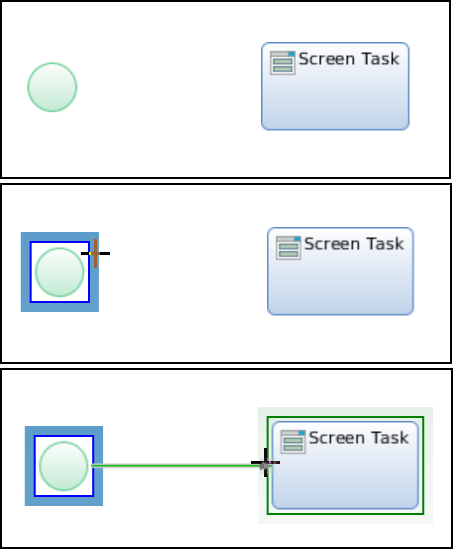
Connections have Properties: to edit them, right-click on the Connection (Connections are easiest to hit when you aim for the start or end part, or for the label) and select Properties from the context menu.
Types of Connections
There are different types of Connections:
- Unconditional (or None Connection): It creates a token for every outgoing connection. Tokens usually flow on such connection without restrictions.
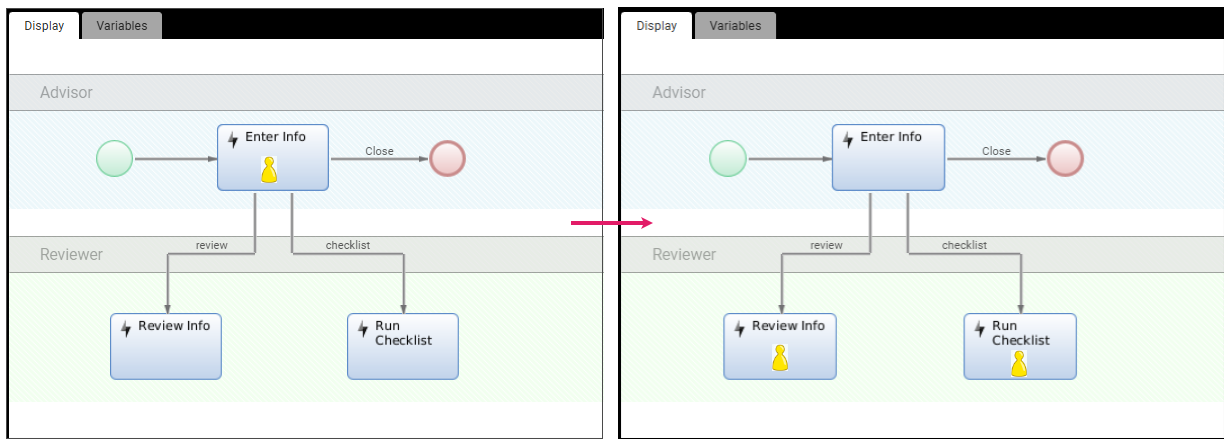
- Conditional (or Expression Connection): Tokens may flow on a connection only if the boolean condition defined on the connection itself thorough a Script Expression (e.g.,
$risk == 1istrue) is satisfied. Connections of this type can be used to introduce a decision within the Process Model.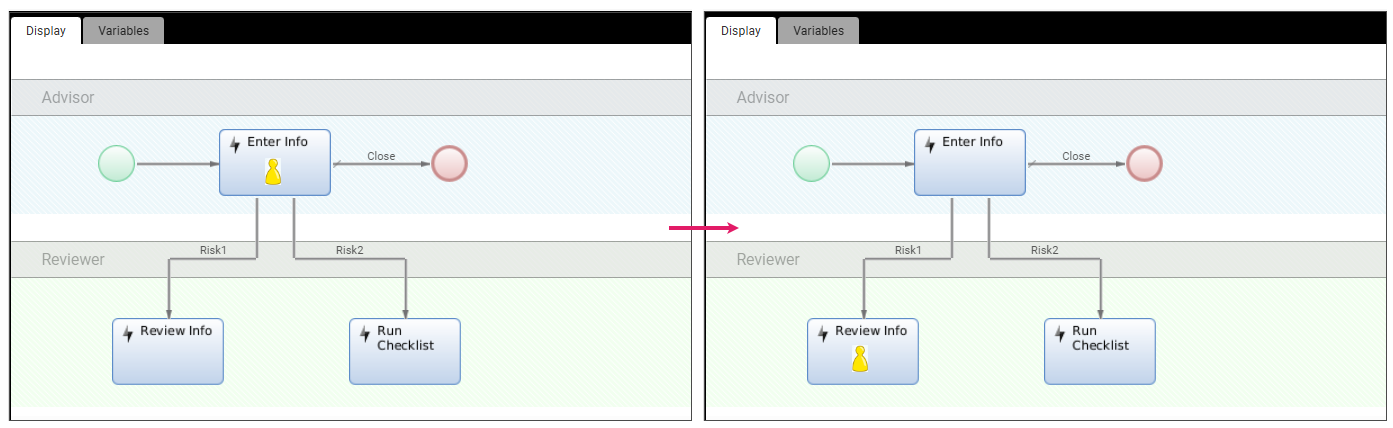
- Default: This connection is activated if no other connection is enabled. For example, if all Conditional Connections return false, the Default connection is enforced.
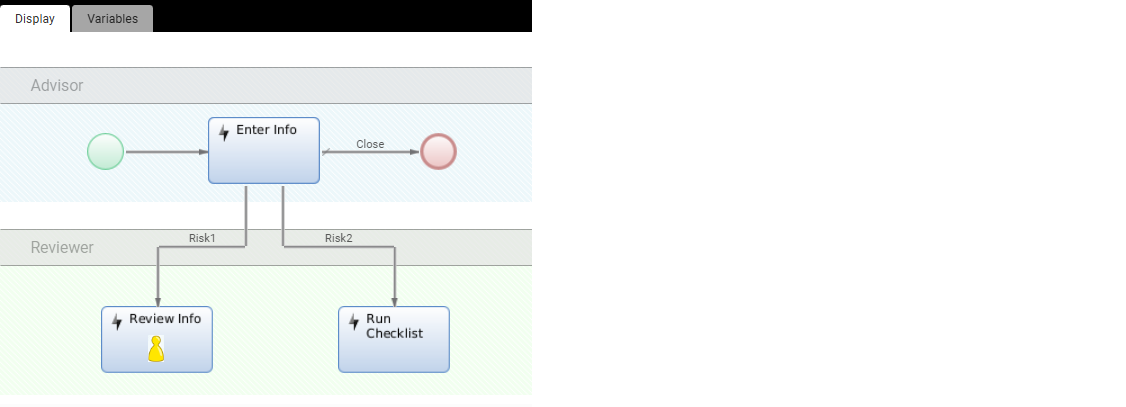
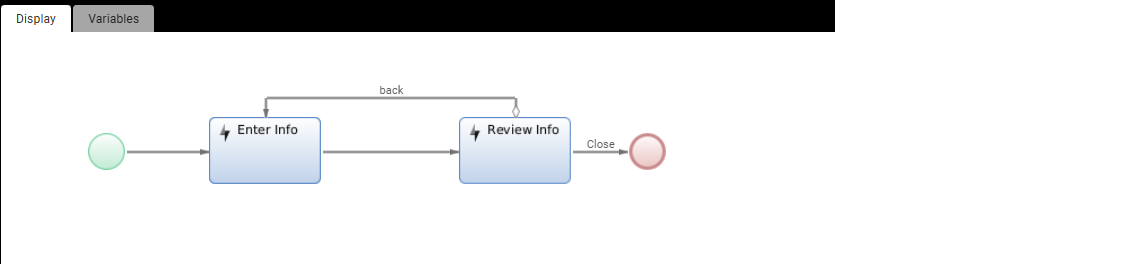
- Label: It is a simplified Conditional Connection that relies on a String Variable called
$action. The system checks if the content of the variable matches the name of the Connection. In the example below, if$action== Label Name (back), the token will move to the previous task.
Connection Rules
Although a Component may have more than one outgoing Connection, some combinations of Connection types are not allowed or useful:
- A Default Connection when there is already an Unconditional Connection, or if there are two or more Conditional Connections when it is guaranteed that one of them will be activated (e.g. if the condition on one Connection is the opposite of the other Connection's condition). In these cases, a Default Connection is always ignored.
- More than one Default Connection is useless. If no other Connection is activated, the Process Engine chooses one of these Default Connections and activates it. Which Default Connection is activated if there is more than one is not defined and, thus, unpredictable.
- If there is only one outgoing Connection, the Connection should be an Unconditional Connection.
In addition to these general rules, there are restrictions on the types of outgoing Connections which are implied by the Component type:
- Outgoing Connections of an AND Gateway must be Unconditional Connections.
- Outgoing Connections of an XOR Gateway must not be Unconditional Connections and conditions on the Conditional Connections should be mutually exclusive.
- If a Process Model is verified, the application tries to find such misconfigurations and reports them. However, violations of these rules usually do not produce errors at runtime.
Connection properties are:
| Field | Description |
|---|---|
| Name | A label shown on the Connection; use this to indicate what a Connection is used for |
| Connection Type | The Connection type (Conditional, Unconditional, Default). |
| Condition (only visible if Type is Conditional) | The condition which needs to be satisfied to allow a Token to flow over this Connection. |
Activation of Outgoing Connections
Default Strategy
There is a default strategy detailing how outgoing Connections are activated. This strategy is used for Tokens on Activities, Events and OR Gateways. Actually, Activities and Events behave like OR Gateways with respect to the activation of outgoing Connections.
Every outgoing Connection is inspected according to these steps:
- First step
- If it is an Unconditional Connection, the Connection is activated.
- If it is a Conditional Connection, the Connection's condition is evaluated and if it returns
true, the Connection is activated. - Default Connections are ignored.
- Second step:
- If at least one Connection has been activated in the previous step, the activation Process ends here.
- If no Connection has been activated, a Default Connection is selected and activated.
- If there is no Default Connection, no Connection is activated.
Further behavior:
- If the evaluation of a Connection condition produces an error, the Process Instance is suspended immediately.
- If there is more than one Connection being activated, the Token is split according to the number of activated Connections and a Token flows on every outgoing Connection. If exactly one Connection has been activated, the Token flows on this Connection. If no Connections could get activated, the Token "dies" and is removed from the Token Set.
- If a Token "dies" because no outgoing Connection could get activated and it has been the last Token in the Token Set, the Process Instance may be completed prematurely.
Outgoing Connections of an AND Gateway
Outgoing Connections of an AND Gateway get activated all together.
Technically, the current Process Engine implementation applies the default strategy to AND Gateways. However, since the Process Model validation verifies that there are only unconditional outgoing Connections, the default strategy results in the required behavior.
Outgoing Connections of a XOR Gateway
For XOR Gateways, the strategy is very similar to the default strategy. The only difference is that, as soon as the first Connection is activated, the activation Process stops. Therefore it is guaranteed that no more than one outgoing Connection is activated. Since there is no predetermined order in the inspection of the outgoing Connections, it is unpredictable which Connection is activated if there are either multiple Unconditional Connections or multiple Conditional Connections with non-exclusive conditions.
Outgoing Connections of a Complex Gateway
Complex Gateways allow using custom split and merge logic.
Complex gateways can, in most cases, be replaced by simple types of gateways such as XOR, OR or AND gateways, which tend to make the Process Model more understandable. Complete information is available in the Using Complex Gateways recipe.
Activation of Components
Once a Token has moved on to the Connection, the Connection type has no further impact on the Token. In other words, Connection types are irrelevant for incoming Connections. The Token now waits until it is allowed to flow to the target Component. If a Token flows to the target Component, the Token is said to "activate the Component".
Default Strategy
By default, Tokens are allowed to flow to the Connection target Component without restrictions. This rule applies to incoming Tokens for Activities, Events and XOR Gateways. Actually, Activities and Events are said be behave like XOR Gateways with respect to incoming Tokens.
Every incoming Token activates the Component. To be precise, every incoming Token activates its own instance of the Component. If the Component is a Script Task and there are 3 incoming Tokens, the Script is executed three times.
Incoming Connection of an AND Gateway
The AND Gateway waits until there is at least one Token on every incoming Connection. If this is the case, it takes one Token from every incoming Condition and merges them to a single Token.
Incoming Connection of an OR Gateway
The OR Gateway Processes all outgoing connection conditions and sends Tokens to each of the connections in which the condition is true.
Incoming Connection of a Complex Gateway
Complex gateways allow using custom split and merge logic.
Complex gateways can, in most cases, be replaced by simple types of gateways such as XOR, OR or AND gateways, which tend to make the Process Model more understandable. For full information, see Gateways.